
Duplicate checking
Overview
Duplicate SKUs and duplicate barcodes can easily cause problems later when working with other systems. The duplicate check in SKU Manager scans your store for these conflicts so you can find them quickly and fix them from one place.
The check can find both duplicate values and blank SKUs, so it is also useful for spotting missing SKU data.
Duplicate checking is a review tool. It does not change anything in your store until you choose to update the results.
Before you run a check
Before starting, make sure SKU Manager has current product data.
If your app data may be out of date, click Re-sync products first.
Wait for the sync to finish before running the duplicate check.
Remember that blank SKUs can be included in the results, not just repeated SKU values.
If you recently added products, edited variants, or imported catalog changes in Shopify, re-syncing first helps make sure your duplicate check reflects the latest store data.
How to run a duplicate check
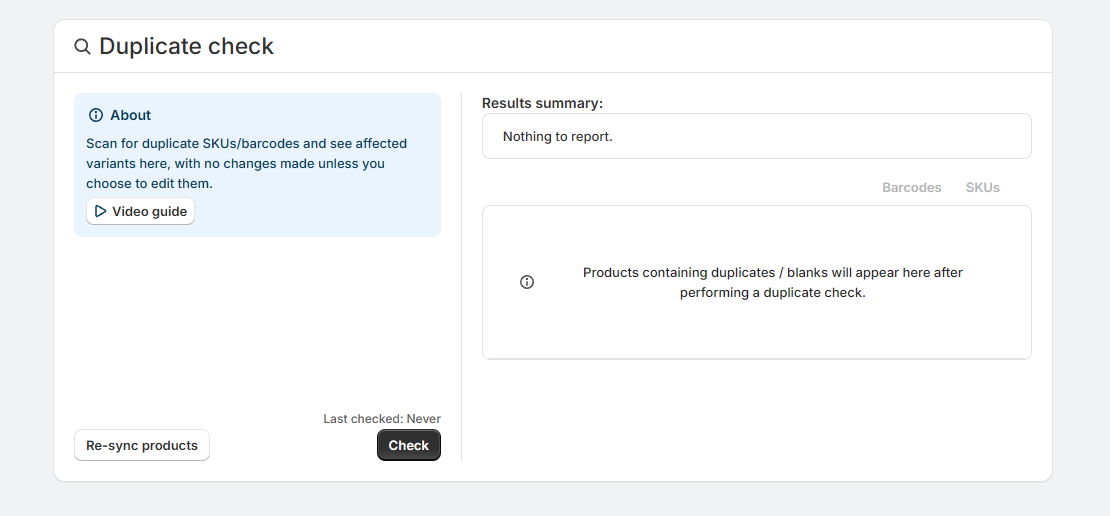
In the SKU Manager sidebar, open Duplicate check.
If needed, click Re-sync products to refresh the app's product data before checking.
Click Check to scan your store for duplicate SKUs, duplicate barcodes, and blank SKUs.
When the check finishes, the results panel updates with a summary and a list of affected products and variants.
Understanding results
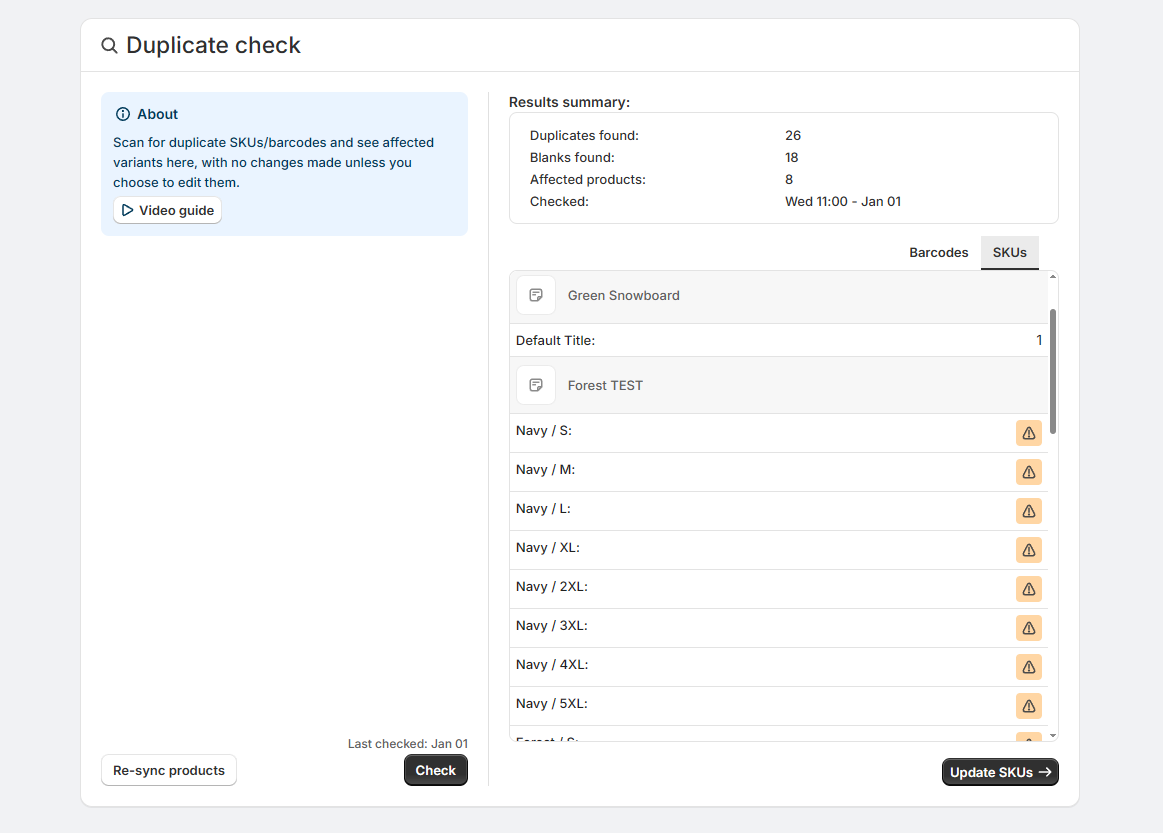
After the scan finishes, SKU Manager shows a results summary along with the products affected by duplicates or blanks.
The summary can include:
Duplicates found: how many duplicate values were detected
Blanks found: how many blank SKU entries were detected
Affected products: how many products contain affected variants
Checked: when the duplicate check was run
Below the summary, you can review the affected products and variants.
Use the SKU and Barcode tabs to switch between duplicate SKU results and duplicate barcode results.
Each product section shows the variants that need attention.
Switching between the SKU and Barcode tabs only changes what you are viewing. It does not change any data by itself.
Updating duplicate values
When you are ready to fix the results, click Update SKUs. This takes you into the normal update workflow, where you can choose how the affected values should be changed.
During update mode:
You can work through the same update process you normally use in SKU Manager.
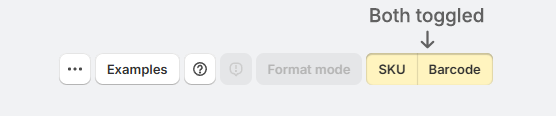
If you need to correct both duplicate SKUs and duplicate barcodes, you can enable both during the update flow where available.
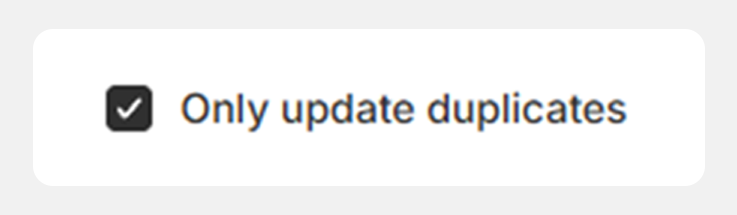
In the final confirmation step, you can turn on Only update duplicates.
When Only update duplicates is selected, SKU Manager updates only the variants that were identified as duplicates. Other variants in the same product are left unchanged.
If you need to reverse an update later, see here for more info.
What happens after updating
After your update finishes, the duplicate check results stay visible on the page. They are not cleared automatically.
This is useful if you want to review what was found, but it also means the displayed results may no longer reflect the latest state of your store after the update.
To refresh the page with current results, click Check again and run a new duplicate check.
After making changes, run the duplicate check again to confirm that the duplicate SKUs or barcodes were resolved.