
Conditional mode
Conditional mode lets you generate part of a SKU based on product information. Instead of assigning the same value to every item, you can create rules such as: if the variant title includes Red, output R. This is useful when your products follow naming patterns and you want SKU values to update consistently.
When to use Conditional mode
Use Conditional mode when the value you want to add to a SKU depends on product data.
Use short codes for colors, sizes, or styles based on the variant title.
Assign different SKU values for different vendors, collections, or product types.
Handle products that use different naming patterns without building separate templates.
Create one rule set that works across many products by matching against the information already in Shopify.
Conditional mode works best when you can clearly describe the pattern you want to match. If your products use consistent naming, you can usually build reliable rules quickly.
How a rule works
Each rule follows a simple if/then structure:
If [product field] includes [value], then output [SKU value]
For example:
If Variant title includes
Red, then outputRIf Product type includes
Hoodie, then outputHDIf Vendor includes
Acme, then outputACM
In each rule, you choose:
What to check: the product field, such as variant title or tags
What to look for: the word, phrase, or values that should trigger the rule
What to return: the value that should be added to the SKU when the rule matches
Using multiple include values in one rule
A single rule can match more than one value. This is helpful when different products use different naming conventions for the same meaning.
For example, if some products use S and others use Small, you can include both values in the same rule and return one output such as SMALL.
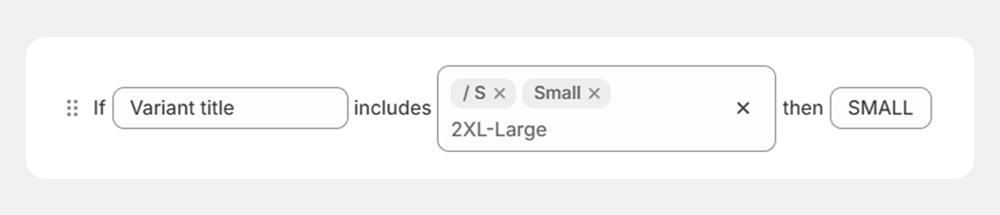
Use multiple include values when the outcome should be the same. This helps you keep your rule list shorter and easier to manage.
What you can match against
Conditional mode can check these product fields:
Variant title
Product title
Option title
Collection
Vendor
Product type
Tags
Product last updated at
Choose the field that most reliably contains the information you want to use. For example, colors and sizes are often easiest to detect from the variant title, while brand-specific values may be better matched from the vendor field.
Rule order matters
Conditional rules are checked from top to bottom. As soon as one rule matches, SKU Manager uses that result and stops checking the rules below it.
This means the first matching rule wins.
For example:
Rule 1: If variant title includes
Blue, outputBLURule 2: If variant title includes
Dark-Blue, outputDRK-BLU
If the Blue rule appears first, a variant named Dark-Blue will match that broader rule before SKU Manager ever reaches the more specific one.
Place more specific rules above broader rules. Otherwise, broad matches can prevent the correct value from being applied.
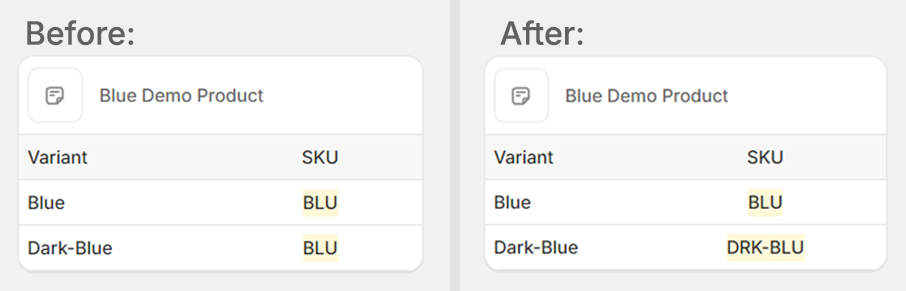
If you need to change the order, drag a condition row using the handle on the left side of the row and move it above or below another rule.
Practical tips
Start with your most specific matches. Put exact or narrow matches above more general ones.
Group similar variations into one rule. If
Small,S, andSmlshould all return the same output, combine them instead of creating separate rules.Choose the most reliable field. Match against the field that stays consistent across your catalog.
Review overlapping words. Terms like
BlueandDark-Bluecan conflict if the broader term appears first.Keep outputs consistent. Decide on a standard format for abbreviations, such as
BLU,RED, orSMALL, and use it across all rules.
If a rule is not giving the result you expect, check whether a broader rule above it is matching first. Reordering the rules often fixes the issue.