Toolbox on the Update page
What the Toolbox is
The Toolbox gives you extra controls while building a SKU pattern on the Update page. It helps you shape the final result more precisely by letting you add separators, save useful setups as presets.
The Toolbox is designed for pattern building on the Update page. It works alongside your combo boxes so you can fine-tune how the final SKU or barcode is assembled.
Where to find it
Within the Update page, on the bottom row, click on the three dots ("...") button. That will open the Toolbox.
You can continue adjusting your combo boxes and use Toolbox options as needed.
What you can do with the Toolbox
Separators
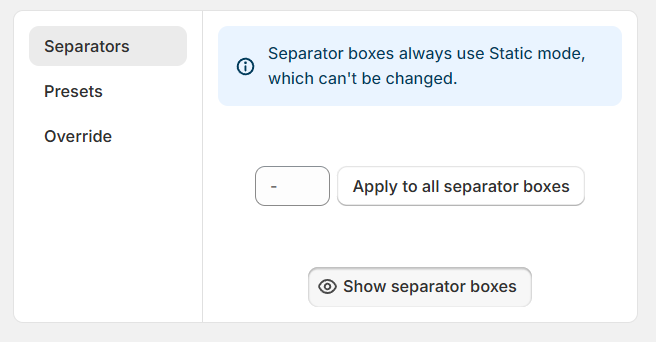
Use Separators when you want visible characters between parts of your SKU or barcode pattern, such as dashes, slashes, or short text markers.
Enable separators in the Toolbox first.
Once enabled, small input boxes appear between the combo boxes.
Enter the separator you want in those boxes.
Each separator can be up to 3 characters.
This is useful when you want a format like AAAA-BBBB-CCCC instead of having all values run together.
Presets
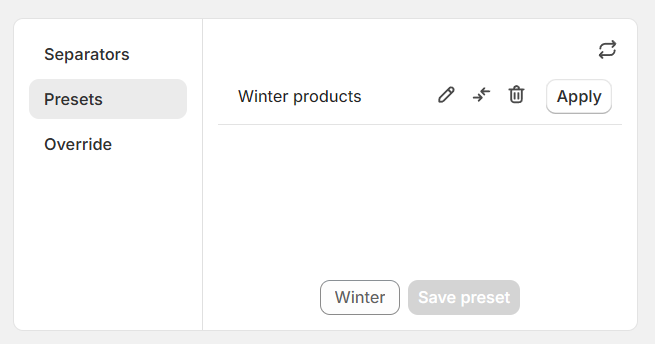
Use Presets to save a combo box setup that you expect to use again. A preset helps you avoid rebuilding the same pattern every time.
Presets are especially useful if products are regularly added to your store.
For each preset you can:
Rename it
Update its combo box configuration
Remove it
Apply it
Override
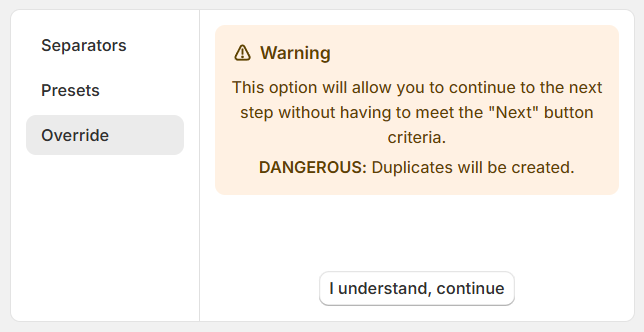
SKU Manager prevents updating with some combo box configurations, as duplicates will likely be created after generating SKUs. Use this if you want to bypass this.