
View and search products
Before you update SKUs, start by finding the products you want to work with. SKU Manager lets you browse your product list, search for matching items, and apply filters to narrow down large catalogs quickly.
You can use this page to select a few products or prepare to update products across your store. Filters make it easier to focus on the exact products that need changes.
How product selection works
SKU Manager uses product-level selection. This means you select whole products from the product list, not individual variants inside a product.
Select one or more products when you want to update a specific group.
Leave the list unfiltered or broaden your filters when you want to work with a larger set of products.
Any SKU update applies to all variants within each selected product.
You cannot select only certain variants from a product on this screen. If you select a product, every variant in that product is included in the update.
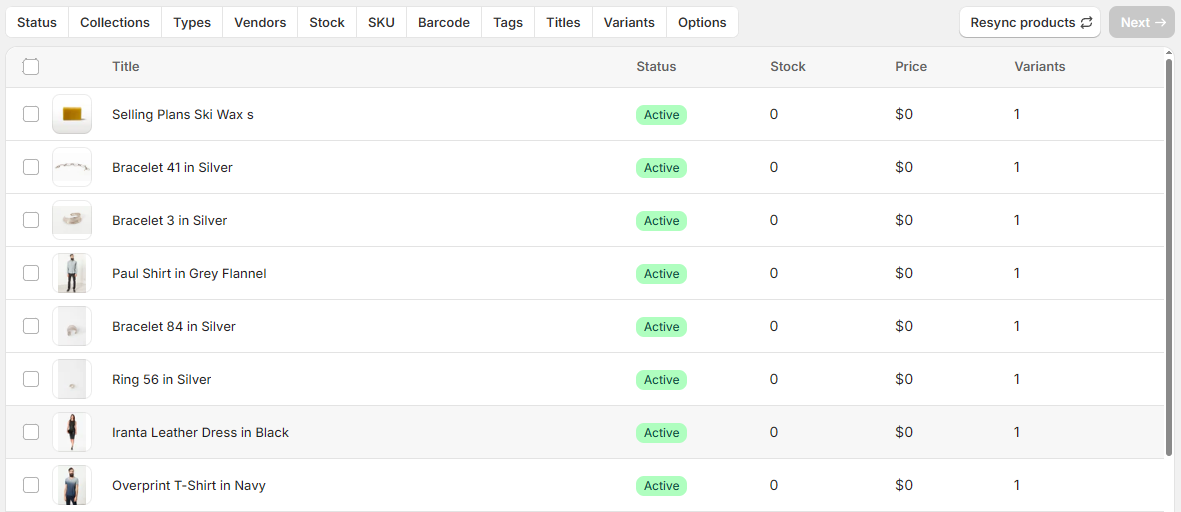
Default product list view
When you first open the product selection screen, you will see the default product list view with no filters selected. This gives you a starting point for browsing your catalog before narrowing the results.
Using filters to find products
Filters help you narrow the product list so you can find the right items faster, especially if you have a large catalog. You can use one filter or combine several to create a more targeted list.
SKU Manager supports filters for:
Product status
Collections
Product type
Vendors
Stock status, such as in stock or out of stock
SKU status, such as products with a SKU or without a SKU
Barcode status, such as products with a barcode or without a barcode
Tags
Product title
Variant labels
Option names, such as Size or Color
Combine filters to narrow results more precisely. For example, you can filter by vendor, stock status, and products without SKUs to find exactly what needs attention.
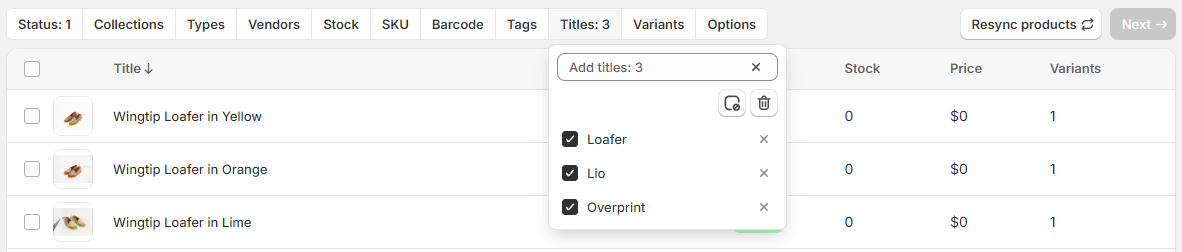
Filtered view example
After filters are applied, the product list updates to show only the products that match your criteria. This helps you confirm that you are about to update the right group of products before moving to the next step.
Typical workflow
Open the update page to see all available products in the default view.
Use the available filters to narrow the list to the products you want to update.
Choose the products you want to include. Remember that selection happens at the product level.
Move to the next step to apply SKU updates to all variants in the selected products.
Important to remember
If a product has multiple variants, SKU Manager will update every variant in that product when the product is selected. It is not currently possible to update only some variants from the selection screen.