
Before you edit SKUs
Before you create or update SKUs in SKU Manager, it is important to understand how SKU changes can affect the rest of your store. A small change pattern can sometimes create duplicate SKUs, so it is worth reviewing your setup carefully and checking for conflicts afterward when needed.
The main risk to watch for
When you generate new SKUs or update existing ones, SKU Manager does not stop a pattern from creating a SKU that already exists elsewhere in your store. This means a bulk change can accidentally create duplicate SKUs if your naming or numbering pattern overlaps with values already in use.
This is most likely to happen when you:
- reuse a numbering pattern that may already exist in your catalog
- apply the same SKU format across multiple products or variants
- update a large group of items at once without first confirming the final SKU format
What you should do before or after making changes
If there is any chance your new SKU pattern could match SKUs already in your store, plan to run a duplicate check after you finish the update. This gives you a quick way to spot conflicts and correct them before they cause confusion in your catalog or operations.
Practical tip for fixing duplicates
When you are working through duplicate SKUs, you do not always need to update every SKU in a product. In the confirmation step, you can limit the update to only the duplicate entries.
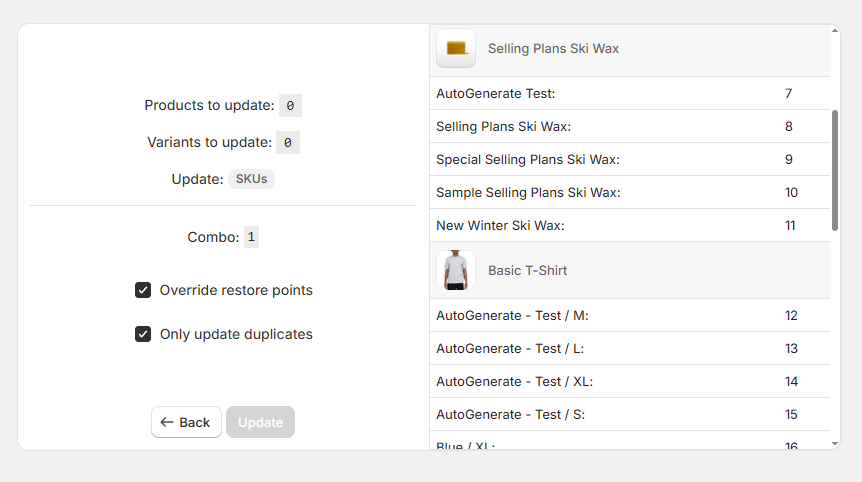
Keep SKU changes safe and manageable
SKU Manager makes bulk SKU updates faster, but it is still important to check the results when your pattern could create overlap. A quick duplicate check after making changes can help you catch issues early and keep your store data clean.