Undoing SKU changes
If you need to reverse a recent SKU or barcode update, use Restore in the sidebar. The Restore page shows your recent change history, lets you preview what changed, and gives you a way to roll back those SKU-related updates when needed.
How restore points work
SKU Manager automatically creates a restore point whenever it makes a change to SKUs or barcodes. Each restore point captures the values before and after that update, so you can review the change later and restore the earlier values if needed.
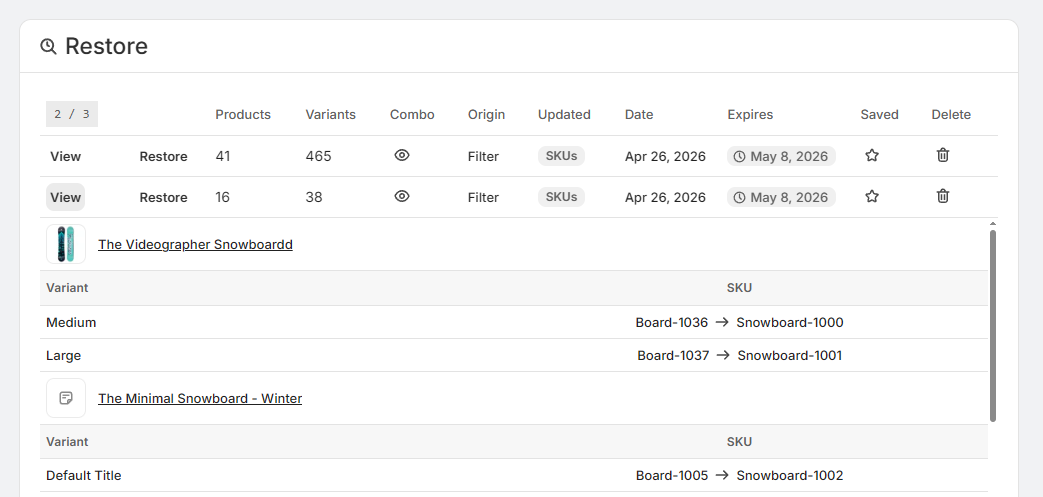
On the Restore page, each row represents one past update. You can open a row to see the affected products and variants, along with a before-and-after view of the SKU or barcode values that changed.
How to restore a previous change
What each column means
- View: Opens a detailed preview of the products and variants included in that update, showing the before-and-after SKU or barcode values.
- Restore: Reverts the SKU or barcode changes from that restore point.
- Products: The number of products included in the update.
- Variants: The number of variants affected by the update.
- Combo: Shows the combo used when the update was run in Update mode.
- Origin: Shows where the update came from, such as the tool or workflow that created it.
- Updated: Shows which field was changed, such as SKUs or Barcodes.
- Date: The date the restore point was created.
- Expires: The date when the restore point will no longer be available.
- Saved: Indicates whether the restore point has been saved so it is not replaced by newer restore points.
- Delete: Removes the restore point from the list.
What restoring does and does not change
Restoring only affects the SKU or barcode values stored in that restore point. It does not roll back other product changes made in Shopify or elsewhere.
What restoring changes
- Reverts SKU values from that restore point.
- Reverts barcode values from that restore point, if barcodes were part of the update.
What restoring does not change
- Product titles
- Images
- Prices
- Any other product details outside the SKU or barcode values captured in that restore point
- New variants added after the restore point was created
- Variant order or orientation
If a variant from the original restore point has since been deleted, restoring will not recreate that variant. SKU Manager also will not move that old SKU onto a different variant as a replacement.
Saved restore points and expiry
You can save a restore point to protect it from being replaced by newer restore points. This is useful when you want to keep an important rollback point available while you continue making changes.
However, saved restore points still expire. Saving prevents them from being overwritten by newer restore points, but it does not make them permanent.
When a new restore point is created, SKU Manager removes the oldest unsaved restore point to make room. Saved restore points are skipped during that replacement process, but once their expiry date passes, they are removed like any other restore point.
About the Override restore points option
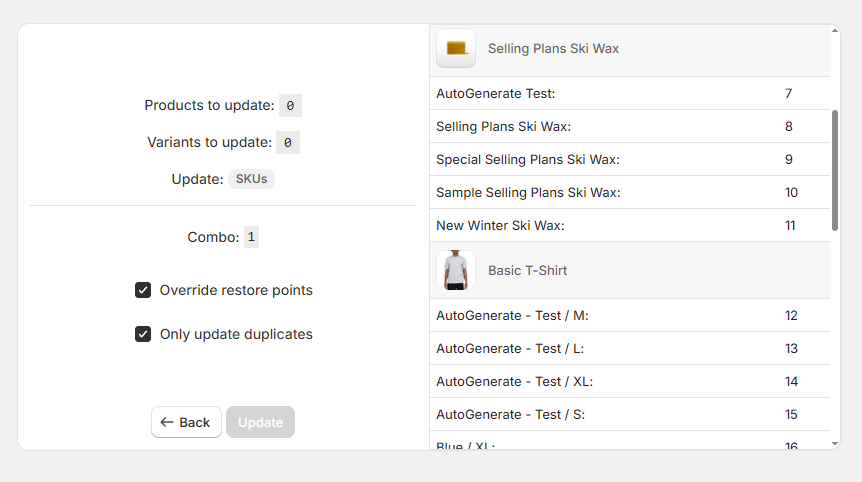
When you confirm an update, you may see an Override restore points option. This is relevant if you are managing how restore points are kept during new updates.
In general, leave this setting unchanged unless you specifically want the new update to replace existing restore point coverage. If keeping rollback history is important, review this setting carefully before confirming the update.