
SKU examples
What Examples are for
The Examples feature gives you a quick way to explore common SKU structures inside SKU Manager. It is designed to help you get started faster and understand how different SKU patterns can be built before you create your own setup.
Examples are especially useful if you are still learning how SKU parts fit together or if you want a simple starting point for a new format.
Examples are meant to help merchants learn common SKU patterns and get started quickly. You can use them as a reference, a starting template, or a way to better understand SKU Manager.
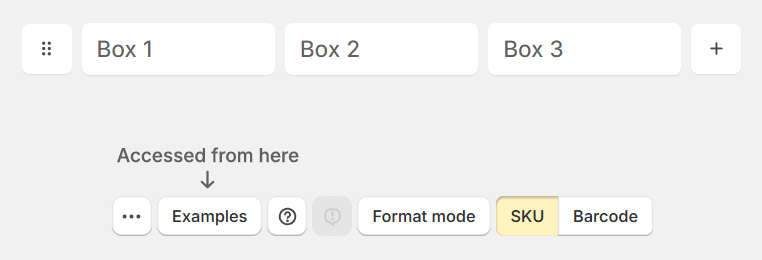
Where to find Examples
You can open Examples from the Update Mode page.
Open the Examples panel any time you want to review common patterns or replace your current setup with a ready-made example.
How the Examples panel works
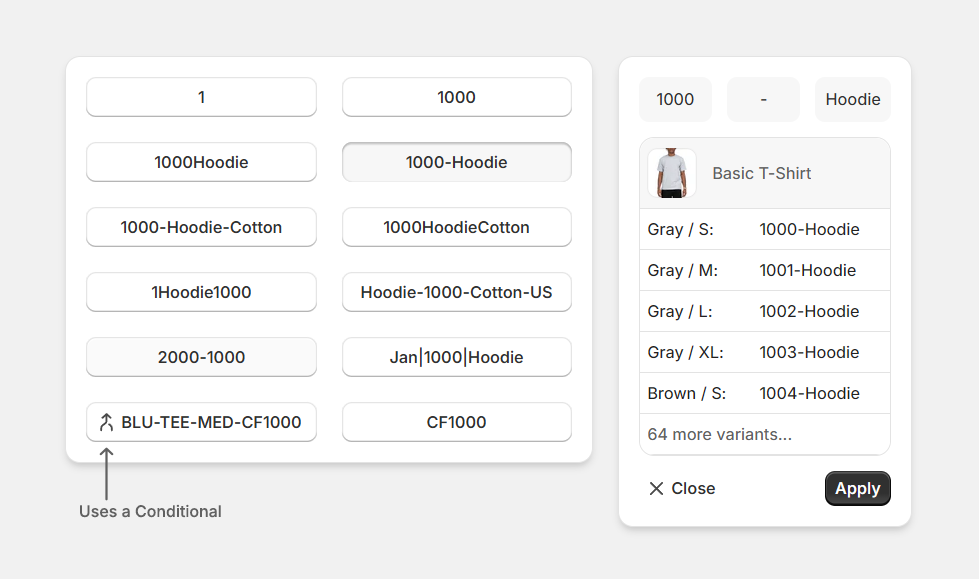
When you open the Examples panel, it is split into two main areas:
Left side: a list of selectable example patterns
Right side: a preview showing how the selected pattern would be generated in SKU Manager
Above the preview, you will also see the combo arrangement used for that example. This helps you understand how the SKU parts are organized to create the final result.
As you click different example patterns, the preview updates so you can compare formats and see which structure best matches the way you want your SKUs to look.
Use the preview to understand the logic behind a pattern before applying it. This makes it easier to choose a format that matches your products and naming style.
What happens when you apply an example
When you click Apply, SKU Manager replaces your current combo boxes with the selected example.
This means the example becomes your new working setup on the Update page. From there, you can keep it as is or continue editing it to match your store's exact SKU format.
Applying an example updates the combo boxes you are currently working with.