
Resyncing products
Overview
Resyncing refreshes the product information SKU Manager uses so it matches the latest data in your store. This is helpful when you have made product changes outside of SKU Manager and want the app to work with the most up-to-date details.
A resync does not change your products by itself. It updates the product data SKU Manager reads, such as the information used in product lists, filters, and conditionals.
When to resync
It is a good idea to resync after making a large number of product changes outside of SKU Manager.
You updated product details directly in your store admin
You imported products or made bulk edits in another app
You changed product organization fields like collections or vendor
You notice SKU Manager is not showing the latest product information
An update was blocked because product data changed, such as after variants were deleted
If you have made only a small change to one or two products, you may not need to resync right away. Resyncing is most useful after broader changes that affect many products or the data your rules depend on.
How to resync
In SKU Manager, go to Update from the sidebar.
Click Resync products in the top-right corner.
SKU Manager will pull the latest product information from your store and refresh the data it uses.
Once the resync is complete, SKU Manager will use the newly refreshed product data across the app.
Trial plan note
On the Trial plan, SKU Manager pulls the first 1,000 most recently updated products during a resync.
If your store has more than 1,000 products, this means the resync on Trial may not include every product in the catalog.
Using resync with Conditional rules
If you use Conditional rules, resyncing is especially important after changing the product fields those rules rely on.
For example, you should resync after updating fields like:
Collections
Vendor
Product type
Any other product field used in your Conditional setup
If a Conditional depends on product data that has changed, SKU Manager may continue using older information until you resync.
What to expect
Resyncing can take a little time, especially in larger stores.
Small catalogs may finish quickly
Large catalogs with thousands of products may take several minutes
During this time, SKU Manager is refreshing the product information it has on file
If your store has a large number of products, allow a few minutes for the resync to complete before checking results or running another update.
If you recently made product changes and SKU Manager still does not reflect them, run a resync first before troubleshooting further.
When resyncing fixes update issues
Resyncing is often the right fix when SKU Manager warns that a product could not be updated because the app is working from outdated product data.
This is especially common if variants were deleted in your store after SKU Manager last refreshed the product.
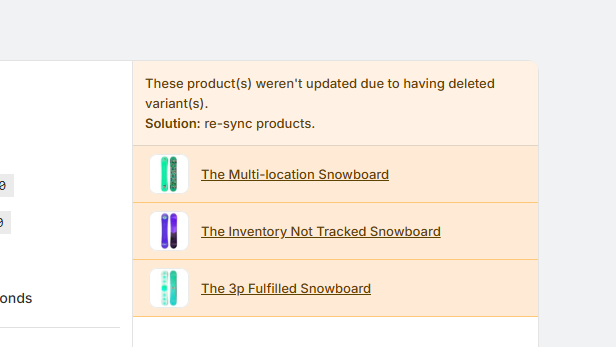
If you see a warning like this, resync products first, then run the update again.