 SKU Manager Docs
Your first rule
Make a format and a rule, and write your first SKUs.
The first time you open SKU Manager, a Get started with SKU Manager card at the top of the Rules page takes you through four steps: create a format, create a rule, run it, and, if you'd like, set it to Automatic. This page follows the same steps.
When you open the app
There's no setup to go through. SKU Manager reads your most recently updated products straight away, so the Rules page opens on your own products, then reads the rest in the background. While it does, the card shows how far it's got, and the counts in SKU health may go up as more products are read. You can start the steps without waiting.
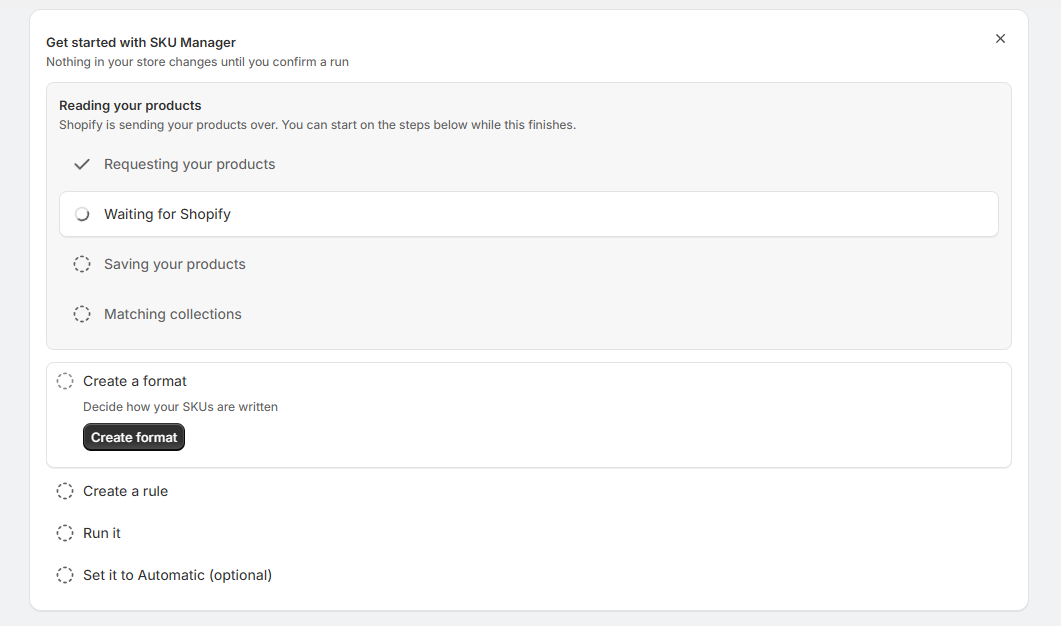
Reading your products doesn't change anything in your store.
The four steps
Create a format
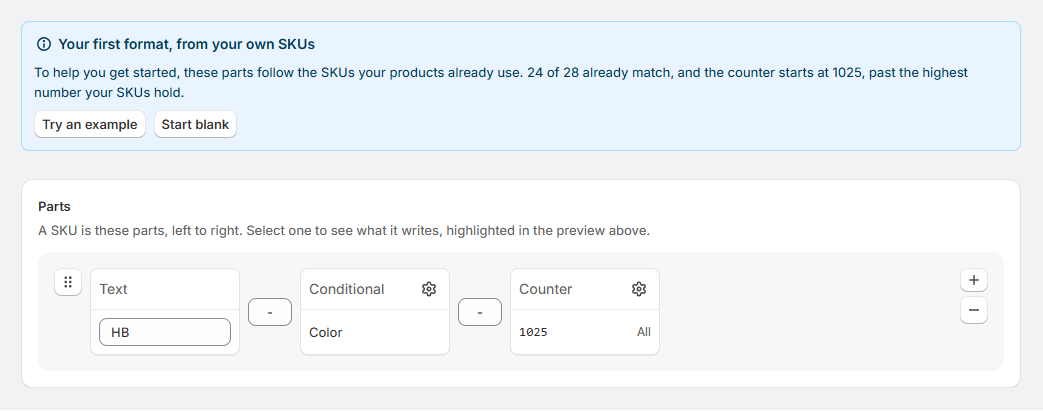
Select Create format. A format is the pattern your SKUs follow, made of parts: Text that's the same on every SKU, a Counter that goes up, and Conditional parts that change with the product.
Your first format comes filled in to help you start:
- If your products already have SKUs that follow a pattern, the parts match it. The notice above the parts says how many of your SKUs already match. If the format has a counter, the notice also says where it starts, past the highest number your SKUs hold, so new SKUs don't reuse old numbers.
- If they don't, the parts are an example built from your products' own options.
Where they're offered, Match your SKUs, Try an example and Start blank switch between these. Change any part you like and check the preview above the parts as you go. Then name the format and select Save in the bar at the top of the page, which brings you back to the Rules page.
Create a rule
Select Create rule. The rule's page has these sections, top to bottom:
- Name, which is how the rule appears in your rules list.
- Conditions, which say which products the rule applies to. Add conditions like "Vendor is Acme" or "Type is T-shirt", or select Apply to everything else to cover every product no other rule does. A count under the conditions shows how many variants the rule would take.
- Formats, where you choose the format you just made.
- Preview, which shows the SKUs this rule would write on your own products.
- Confirm, where you choose what to write. That's the next step.
Run it
In the Confirm section when creating a rule, choose how much of the rule to run:
- Only variants without a SKU, which is selected to start with. Nothing that already has a SKU is touched.
- Every variant this rule owns. Fills in missing SKUs and fixes ones that don't match. SKUs that already match are left alone.
- Every variant, rewritten from scratch. Also rewrites the SKUs that already match, and they're given new numbers rather than the ones they have. Only offered when some of the rule's SKUs already match.
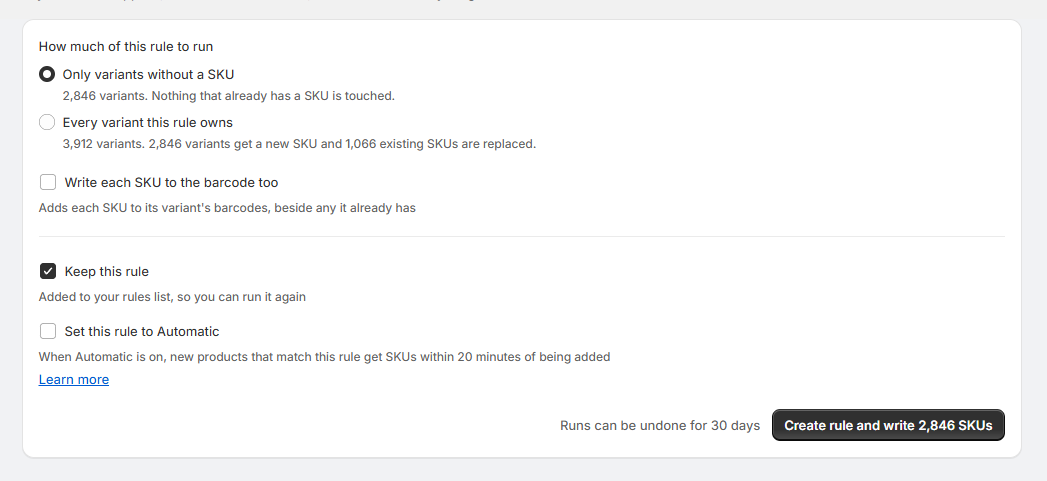
If the run would replace SKUs your variants already have, the Confirm section shows them and asks you to check a box before you can go ahead.
Keep this rule is checked, which adds the rule to your rules list so you can run it again. Uncheck it to write SKUs once without saving the rule.
Select the button that writes, like "Create rule and write 120 SKUs". You're taken to the run's page in Activity, which shows the SKUs being written and then what changed. A large run can take a few minutes, and it keeps going whether or not the app is open. If the SKUs aren't what you wanted, Undo is on the same page.
Set it to Automatic (optional)
Select Go to your rules, then Turn on Automatic on the card. When a rule is set to Automatic, new products that match it get SKUs within 20 minutes of being added.
You can also check Set this rule to Automatic in the Confirm section before you run it, or switch Automatic on later from the rule's panel on the Rules page. See Automatic.
Once the steps are done, the card says "You've written your first SKUs". Every run stays on the Activity page, where you can undo it if the SKUs aren't what you wanted.

If your store has more than 500 managed variants
Managed variants are the variants in your store, not counting archived products. The Free plan covers everything for stores under 500 of them.
A bigger store on Free can write its first 500 SKUs free. The Confirm section says how many a run uses, like "This run uses 120 of your free 500 SKUs, leaving 380". If a rule would write more than you have left, the button says so, like "Write 210 of 2,846 SKUs". Automatic needs a plan that fits your store's size. See Plans and pricing.