 SKU Manager Docs
SKU health
See which variants are missing a SKU, share one, don't match their format, or aren't in a rule, and fix each from one place.
SKU health shows the state of your store's SKUs. It sits at the top of the Rules page, and it only reports: it never changes a SKU by itself.
What it shows
A bar across the top shows how your variants split between the states below, so you can see the shape of your store at a glance. Each variant is drawn once, in the most serious state it's in.
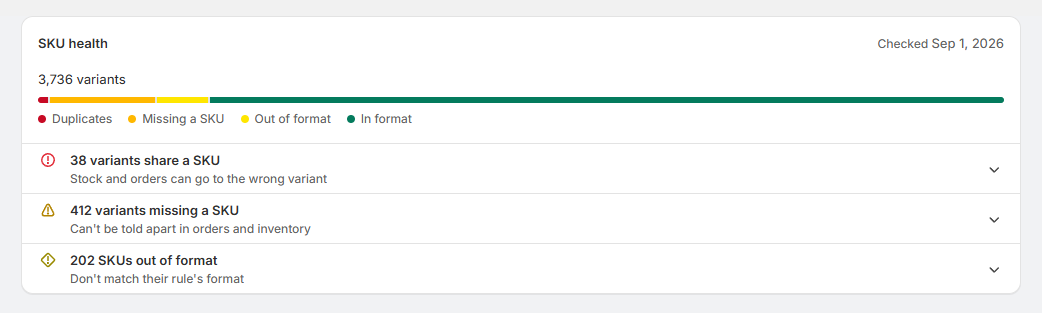
Under the bar, each problem is listed with its count, what it means for your store, and a way to fix it:
| Problem | What it means | Fix |
|---|---|---|
| "12 variants share a SKU" | Stock and orders can go to the wrong variant. | Resolve duplicates |
| "40 variants missing a SKU" | They can't be told apart in orders and inventory. | Add SKUs |
| "85 SKUs out of format" | They don't match their rule's format. | Bring into format |
| "240 variants aren't in a rule" | No rule writes their SKUs, so nothing keeps them consistent. | Create rule |
A store with none of these shows "No duplicate, missing, or out-of-format SKUs".
Archived products aren't counted. See Formats for what makes a SKU in format.
Fix a problem
Select a problem to see it broken down by rule, with a fix beside each rule. Problems split by rule because each rule writes with its own format, so each is fixed by its own run.
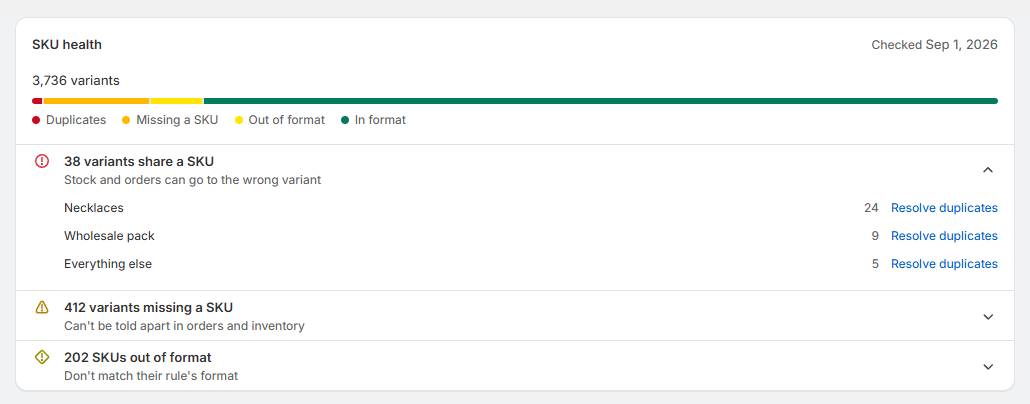
- Add SKUs opens the rule ready to run with Only variants without a SKU, so it only fills in the missing ones.
- Bring into format opens the rule ready to run with Every variant this rule owns, which fixes SKUs that don't match and leaves ones that do. The Confirm section shows the SKUs it would replace before you run it.
- Resolve duplicates opens the Duplicates page narrowed to the rule. See Duplicates.
- Create rule, beside the variants that aren't in a rule, starts a rule that applies to everything else.
Nothing is written until you run the rule. See Running a rule.
When the counts update
SKU health keeps itself up to date. Any change that could move a count, like a product changing in Shopify, a run, an undo, or saving a rule or a format, marks the counts out of date, and they're checked again the next time you open the Rules page. Counts more than a day old are checked again too.
The line under the title says when they were checked, like "Checked 5 minutes ago". In a store with more than 10,000 variants, a new check runs in the background and the line says "Checking again", with the last counts on screen until it finishes. There's no refresh button, since the counts don't need one.
If a check can't finish, SKU health says "Couldn't finish checking SKUs", keeps the last complete counts, and offers Try again.
Right after installing
SKU Manager reads your most recent products first and the rest in the background. Until it has read them all, SKU health says "Still reading your products, so these counts may go up", and out-of-format SKUs show as Still counting, since they can only be counted once every product has been read.
If SKU health says "Some counts are missing because your products haven't been fully read", select Resync products at the top of the Rules page to fill them in. See Resync products.
Recommendations
- Fix missing SKUs first. "Add SKUs" only fills in blanks, so nothing that already relies on your SKUs changes.
- Resolve duplicates next. A SKU shared by two variants can send stock and orders to the wrong one.
- Think before bringing SKUs into format. Out-of-format SKUs still work. Rewriting them changes SKUs that warehouse software, marketplaces or spreadsheets may already use, so only do it when a consistent pattern is worth that.
- Get every variant into a rule. A rule that applies to everything else, set to Automatic, means new products always get SKUs too.
- Look at SKU health after a big import, to catch missing or repeated SKUs the import brought in.