 SKU Manager Docs
Formats
Build the pattern your SKUs follow from Text, Counter and Conditional parts, and share it between rules.
A format says how a SKU is written. It's a row of parts, read left to right, with separators between them. A rule says which products a format is for, and one format can be used by any number of rules.
For example, this format writes SKUs like TEE-RED-0042:
| Part | Writes |
|---|---|
| Text | TEE on every SKU |
| Separator | - |
| Conditional | RED for red variants, BLU for blue ones |
| Separator | - |
| Counter | 0042, then 0043, and so on |
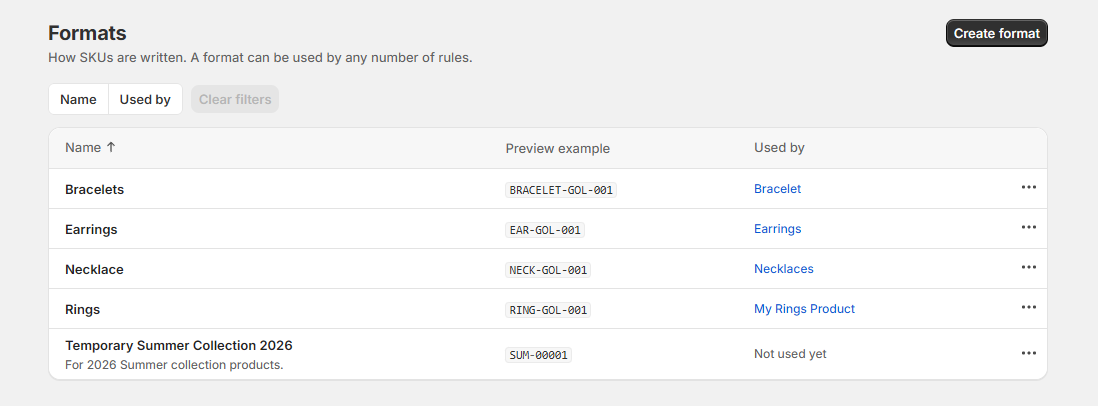
The Formats page
The Formats page lists every format in your store, with an example SKU from each and the rules that use it. The ⋯ menu on each format has:
- Edit, to change the format.
- Create rule with this format, to start a rule that already uses it.
- Duplicate, to make a copy with its own numbering.
- Delete, which is only possible once no rule uses the format.
Select Create format to make a new one. You can also create or edit a format from the Formats section when creating a rule, and come straight back to the rule when you save it.
Build a format
The format editor has three areas, top to bottom:
- Name and description. The name is how the format appears on the Formats page and when choosing a rule's format. The description is optional.
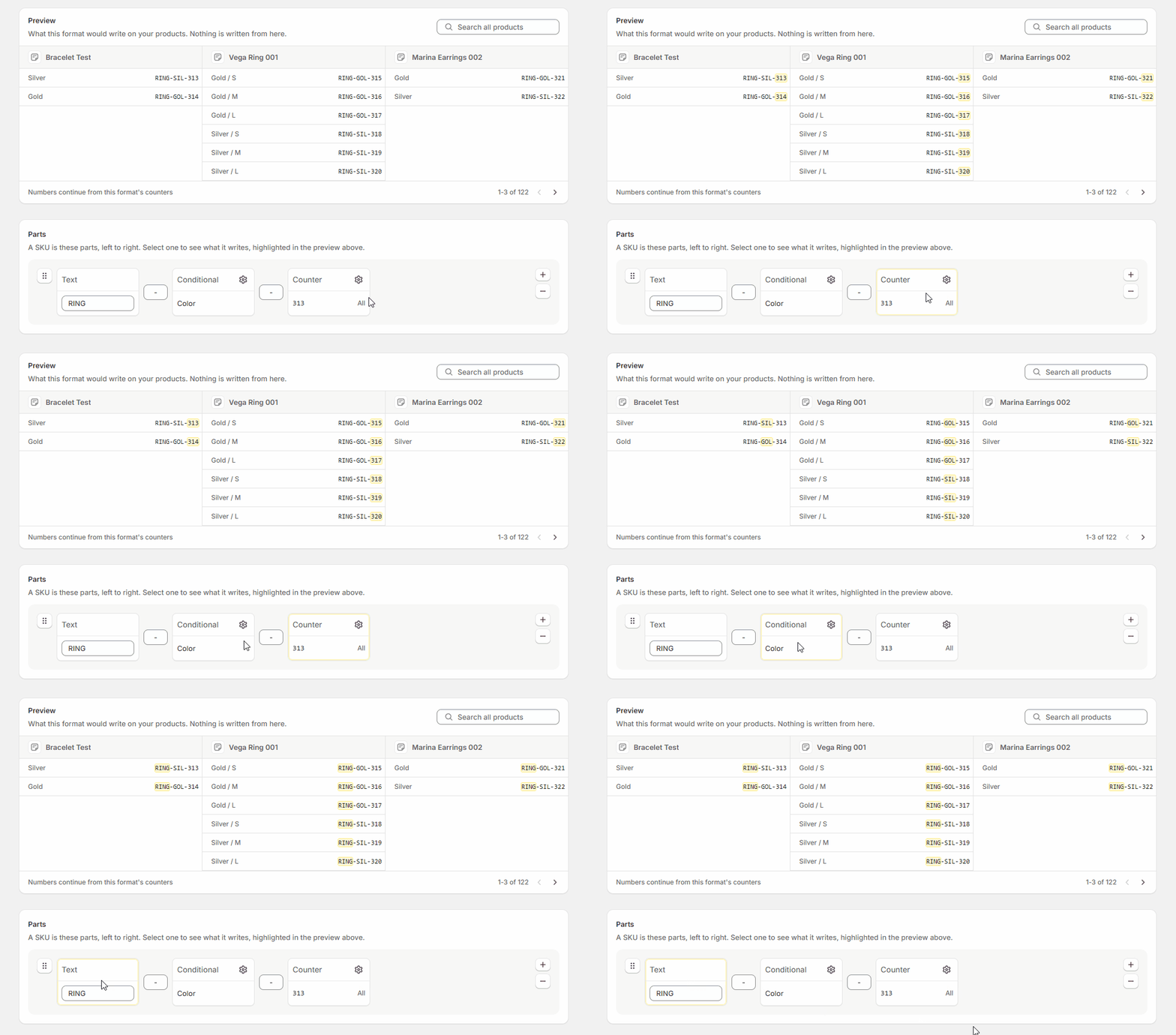
- Preview. Shows the SKUs the format would write on your own products, three at a time. Use the search to find a particular product. When you select a part, the piece of each SKU it writes is highlighted.
- Parts. The parts of the SKU, left to right.
Add parts
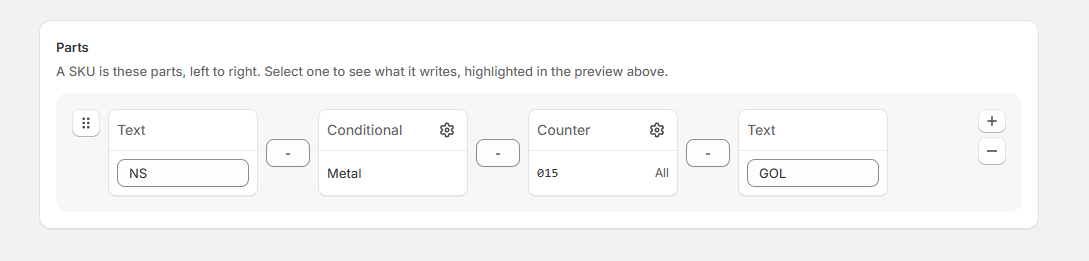
Select the + button at the end of the parts and choose one of three kinds:
- Text: a fixed piece, the same on every SKU, like a brand code. Type it into the part. SKU Manager writes it exactly as you type it, upper and lower case included.
- Counter: a number that goes up. The part shows the next number it writes. Select the cog icon on the part to choose how it counts, where it starts and how many digits it has. See Counters.
- Conditional: different text depending on the product, like a code for each color. Select the cog icon on the part to open its conditions below the format. See Conditional parts.
A format can have up to 10 parts.
Rearrange and remove parts
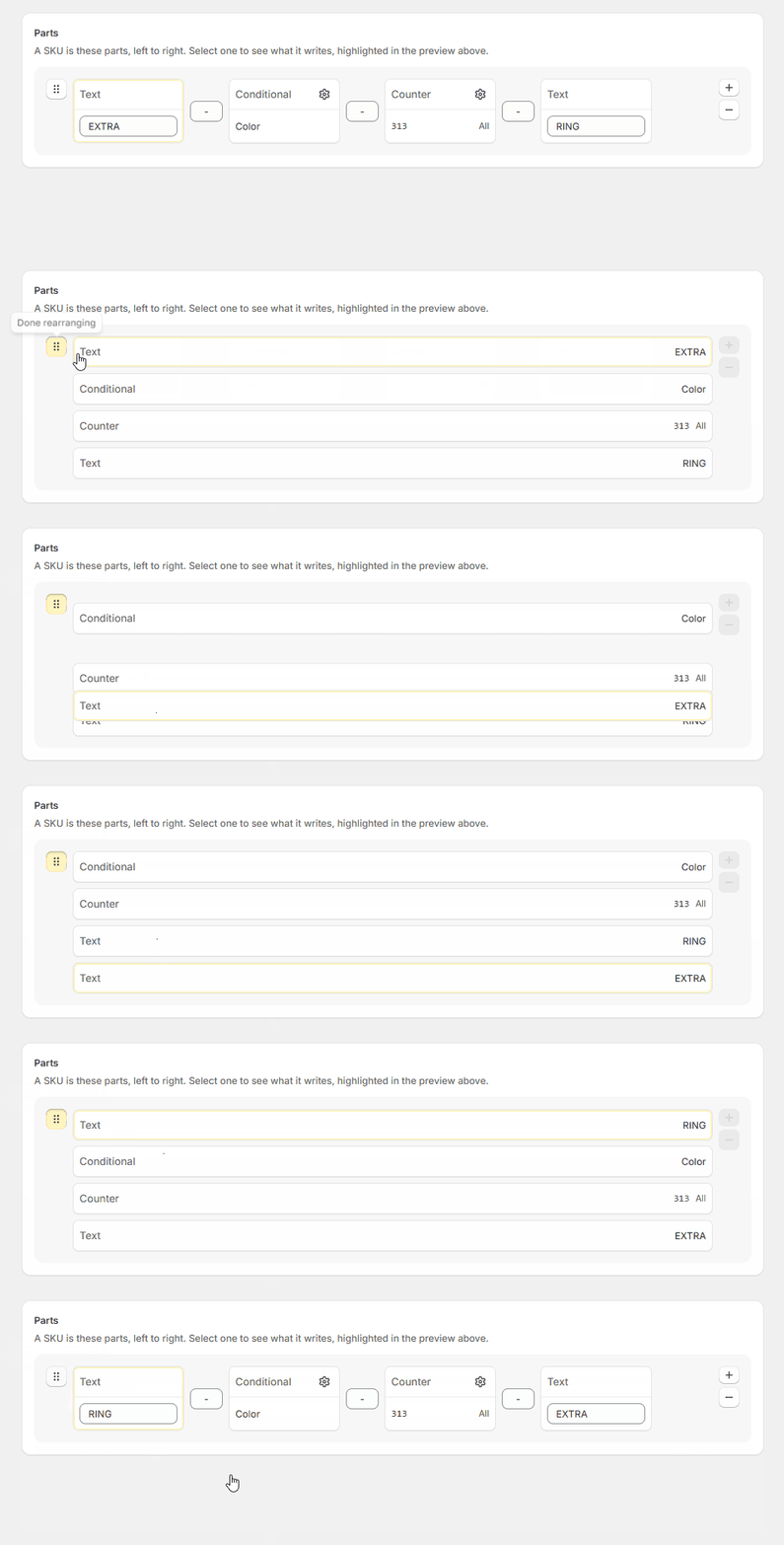
- To change the order, select the drag handle button at the start of the parts. The parts line up in a column for you to drag into place. Select the button again when you're done.
- To take a part out, select the − button at the end of the parts. Each part's cog icon turns into a −, which removes that part. Select the − button at the end again when you're done.
Neither changes anything until you save the format, so you can discard the changes from the bar at the top of the page. While a conditional's conditions are open, parts can't be added, moved or removed.
Add separators
Between each pair of parts is a small box for a separator, like - or /, up to 3 characters. Leave it empty to join two parts directly.
Separators stay in their places when you rearrange parts, so check them after moving a part.
When a part writes nothing for a variant, like a conditional with nothing to write, its separator is left out with it, so a SKU never ends in a stray - or has two in a row.
Warnings about repeated SKUs
Under the parts, the editor warns when a format could give two variants the same SKU:
- "Without a counter, every variant can get the same SKU." Add a Counter part.
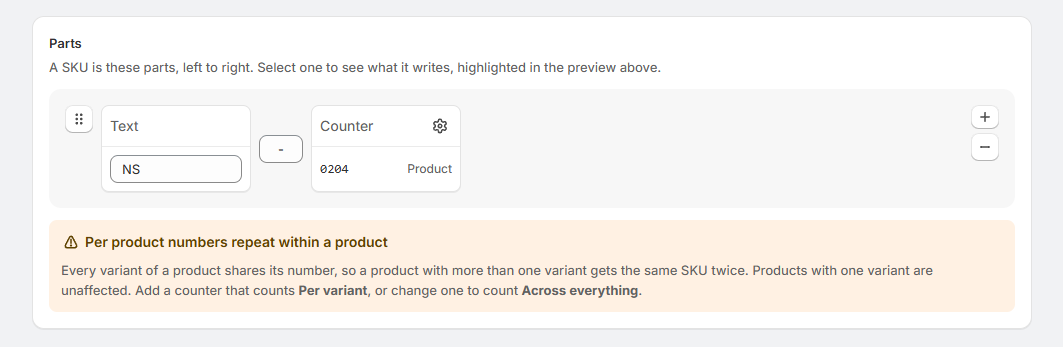
- "Per product numbers repeat within a product." Every variant of a product shares a Per product number, so products with more than one variant need something else to tell their variants apart.
- "Per variant numbers repeat across products." Per variant numbers start again in each product, so products need something else to tell them apart.
- "Parts 3 and 5 run together." Two counters with only numbers between them can read the same for different variants, the way
11then1reads like1then11. Put a separator or some text with a letter or symbol between them.
These are advice, and you can still save. A Per product counter on its own is fine in a store where every product has one variant, for example. See Counters for ways to combine counters.
Save
Select Save in the bar at the top of the page.
Change a format that rules use
Every rule on a format writes with its latest version. If a rule has already run on the format, saving a change to its parts or separators asks you to confirm first, because the SKUs those rules have written stay as they are and may no longer match.
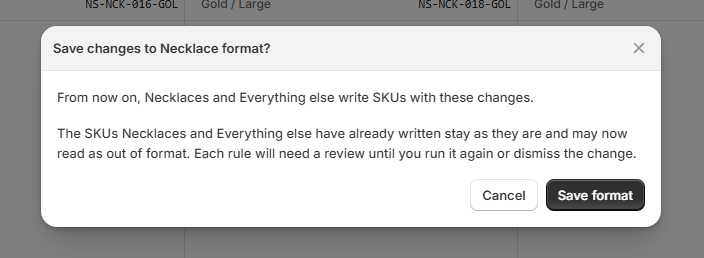
Once you save, each of those rules shows Needs review on the Rules page. From the rule, you can either run it again to bring its SKUs into the new format, or dismiss the change and leave them as they are. See Rules and their order.
Share a format, or copy it
Rules on the same format share its counters. Two rules using one format draw their numbers from the same counters, so they never hand out the same number twice. This is usually what you want when several rules write SKUs in the same pattern.
A copy has its own numbering. If two rules should each count from the beginning, like a separate sequence for each product type, give each rule its own copy: select Duplicate in the format's menu on the Formats page. A copy starts its numbers from the beginning, so it can write SKUs the original has already written, and any duplicates that creates will show in SKU health.
Delete a format
A format can only be deleted once no rule uses it. If one does, the Formats page names the rules to change first.
Deleting a format doesn't change any SKUs. The SKUs it wrote stay on your products. Its numbering is deleted with it, so a new format starts again from the beginning, and any duplicates that creates will show in SKU health.
When a SKU matches its format
SKU health counts a SKU as in format when it has the format's shape:
- Text parts match exactly, upper and lower case included.
tee-0042doesn't match a format whose Text part isTEE. - Counter parts match any number with at least the counter's digits.
- Conditional parts match any of the conditional's outputs.
- Separators match exactly.
A SKU that doesn't match is counted as out of format. Runs leave SKUs that match alone, unless you choose Every variant, rewritten from scratch in the Confirm section when creating a rule. See SKU health.
Recommendations
- Keep the pattern you already have. If your SKUs already follow a pattern, your first format is filled in to match it. Warehouse software, marketplaces and spreadsheets may already rely on those SKUs, so changing the pattern means changing them too.
- Give every format a counter. Text and conditional parts alone can give two variants the same SKU.
- Start with text, not a number. A spreadsheet can drop the leading zeros from a SKU that's all digits, so
0042becomes42. A SKU likeTEE-0042keeps them. - Keep SKUs short, in capitals, and without spaces. They're easier to read on a packing slip and to type into a scanner or a search.
- Name formats for what they write, like "Necklace SKUs", so they're easy to pick when creating a rule.
Limits
- Up to 250 formats in a store.
- Up to 10 parts in a format.
- Up to 40 characters in a Text part, and 3 in a separator.