 SKU Manager Docs
Automatic
Set a rule to Automatic so new products that match it get SKUs without you running it.
When a rule is set to Automatic, new products that match it get SKUs within 20 minutes of being added. You don't need to run the rule each time you add products.
Turn Automatic on
Any of these sets a rule to Automatic:
- The Automatic switch in the rule's panel on the Rules page.
- Set this rule to Automatic in the Confirm section when creating a rule, before you run it.
- Set this rule to Automatic on the run's page after running a rule once without keeping it, when you choose to keep it.
A rule that isn't set to Automatic is Manual, and writes only when you run it. Switch Automatic off in the rule's panel to make it Manual again.
What Automatic writes
Automatic only fills in missing SKUs. It never changes a SKU a variant already has, even one that doesn't match its rule's format.
When a product with a variant missing a SKU is added or changed in Shopify, it goes on the Waiting list. At the next automatic run, each of its variants without a SKU gets one from the rule it belongs to, as long as that rule is set to Automatic. A variant whose rule is Manual, or that isn't in a rule, is left as it is.
A rule with Write each SKU to the barcode too checked also adds each SKU Automatic writes to the variant's barcodes, beside any already there, so a product added with its UPC keeps it. See Running a rule.
Products already in your store aren't written just because you turned Automatic on. To fill in SKUs on those, run the rule. See Running a rule.
How soon
Automatic runs on your plan's interval, so a new product gets its SKUs within that time of being added:
| Plan | New products get SKUs within | Products per automatic run |
|---|---|---|
| Free | 20 minutes | 100 |
| Growing | 20 minutes | 100 |
| Established | 10 minutes | 200 |
| High volume | 5 minutes | 300 |
When more products arrive at once than one automatic run takes, the rest wait for the next one. Nothing is dropped.
Each automatic run that writes SKUs shows on the Activity page as "Automatic run of" the rules it wrote through, and can be undone like any other run. An automatic run with nothing to write isn't listed.
The Waiting list
The Waiting tab on the Activity page lists the products waiting for the next automatic run. For each product, it shows how many variants have nothing written, when it arrived, and which rule will write its SKUs. When no rule will, it says why, like "Not in a rule" or "Necklaces isn't set to Automatic".
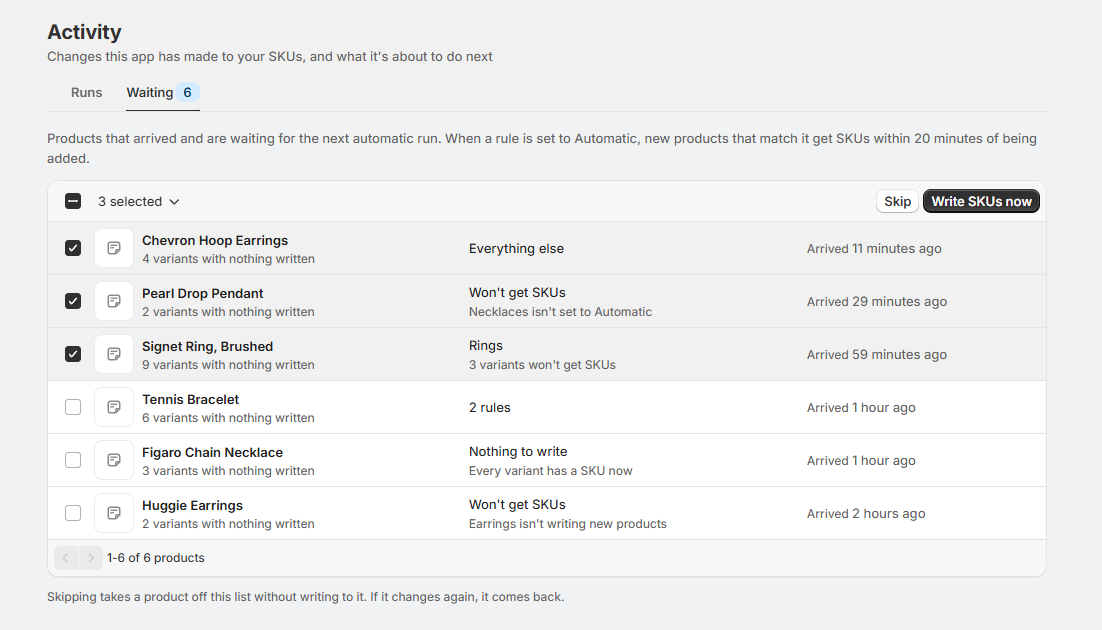
Select products to act on them:
- Write SKUs now writes them straight away instead of waiting for the next automatic run.
- Skip takes them off the list without writing to them. If a skipped product changes again, it comes back.
Products are only added to the Waiting list while at least one rule is set to Automatic.
When Automatic isn't writing
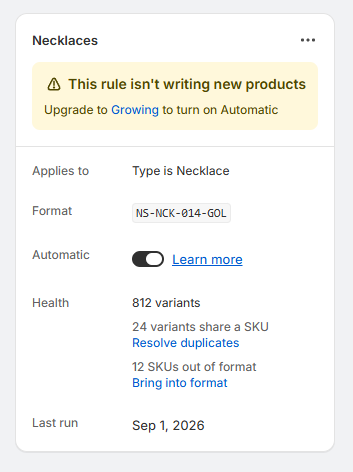
A rule set to Automatic shows "This rule isn't writing new products" in its panel when:
- Your store has outgrown its plan. The notice names the plan that fits, like "Upgrade to Growing to turn on Automatic". On Free, Automatic writes for stores under 500 managed variants. See Plans and pricing.
- It was paused before 3.0. A rule that was disabled in Automate is paused. Select Resume rule to start it writing again.
Only one run writes to a store at a time, so an automatic run waits while another run, an undo or a redo is still writing.
Recommendations
- Keep products out with conditions, not Skip. A skipped product comes back the next time it changes. To leave some products without SKUs, make sure no Automatic rule's conditions match them.
- Run the rule once before turning on Automatic. Automatic covers products from now on. A run fills in the ones already in your store.
- Check the Waiting tab after a big import. Select Write SKUs now if the products need SKUs straight away, like before they're listed on a marketplace.