 SKU Manager Docs
Rules
Say which products a format is for with conditions, and decide which rule writes a variant's SKU with their order.
A rule says which products a format is for. It's a set of conditions, like "Vendor is Acme", and the format their SKUs follow. Rules write SKUs when you run them, and a rule set to Automatic also fills in SKUs for new products as they're added.
The Rules page
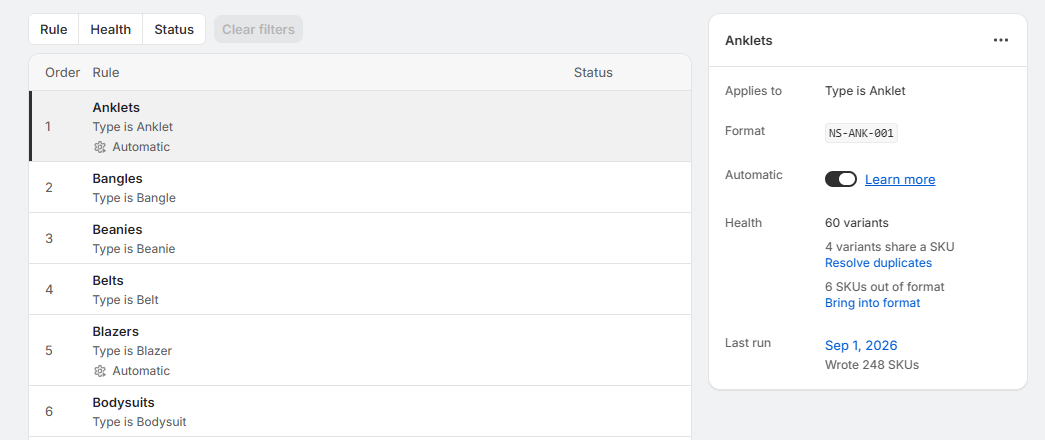
The Rules page lists your rules in priority order, under SKU health. Each row shows:
- Order: the rule's place in the list, which decides which rule writes a variant's SKU. See How order decides.
- Rule: its name, with its description or its conditions underneath. A rule that writes each SKU to the barcode too is marked Barcode there.
- Format: the format it writes with.
- Health: what SKU health found among its variants, like "12 out of format" or "3 share a SKU".
- Status: whether it's Manual or Automatic, or needs your attention. See Rule and run states.
The last row is always Everything else. If you have a rule that applies to everything else, it's that rule. If you don't, the row counts the variants no rule covers, like "240 variants aren't in a rule", with Create rule beside it.
Filter the list by Rule, Health or Status. The list shows 25 rules a page.
Select a rule to open its panel beside the list, and select it again to close it.
Create a rule
Select Create rule at the top of the Rules page. The rule's page has these sections, top to bottom:
- Name and description. The name is how the rule appears in your rules list. The description is optional and shows under the name.
- Conditions. Which products the rule applies to.
- Formats. The format the rule writes with. Choose one, or select Create format under the list to make one without leaving the rule.
- Preview. The SKUs the rule would write on its own products.
- Confirm. Where you choose what to write and run the rule. See Running a rule.
To save a rule without running it, select Save in the bar at the top of the page.
Conditions
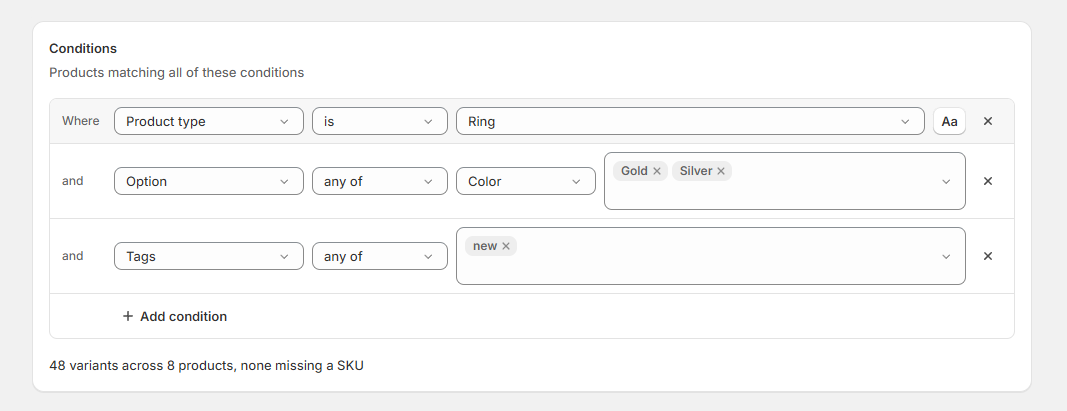
Select Add condition, then choose a field, how to compare, and a value. A product has to match every condition to be in the rule.
| Field | Ways to compare |
|---|---|
| Status (product) | any of, none of |
| Vendor, Type (product) | is, is not, any of, none of, contains, starts with |
| Tags, Collection (product) | any of, all of, none of |
| Title (product) | is, is not, contains, starts with |
| Option (variant) | any of, all of, none of |
| Has SKU, Has barcode (variant) | Yes or No |
| SKU (variant) | is, is not, contains, starts with |
- Option conditions pick out some of a product's variants, like "Color is Red", so one product's variants can belong to different rules.
- Values are chosen from the ones your products already hold, or typed in for products you haven't added yet.
- Text comparisons ignore upper and lower case unless you select Aa beside the value to match it exactly.
- Collection conditions use the collections SKU Manager last read. Shopify doesn't send collection changes as they happen, so after moving products between collections, select Resync products. See Resync products.
- A rule can have up to 10 conditions.
Under the conditions, a count shows how many variants the rule would take, and how many of them are missing a SKU. If a rule above it already takes some of the same variants, the count says so, like "Necklaces is above this rule and takes 40 more variants these conditions match".
Everything else
Instead of adding conditions, select Apply to everything else. The rule then takes every variant no rule above it does, and always sits last. A store can have one rule that applies to everything else.
How order decides
The first rule that matches a variant writes its SKU. Each variant belongs to one rule: the highest one in the list whose conditions it matches.
For example, with these rules in this order:
| Order | Rule | Conditions |
|---|---|---|
| 1 | Gold necklaces | "Type is Necklace" and "Tagged Gold" |
| 2 | Necklaces | "Type is Necklace" |
| Last | Everything else | none |
A gold necklace belongs to Gold necklaces, every other necklace to Necklaces, and everything else to Everything else. Put Necklaces above Gold necklaces, and Gold necklaces would take nothing, since Necklaces would match every necklace first.
- Put specific rules above general ones.
- A new rule goes at the bottom, just above Everything else.
- A rule that takes nothing says so. Its panel shows "This rule doesn't take any variants", because rules above it take its products first or no products match its conditions, with Move rule and Edit rule to fix it.
Change the order
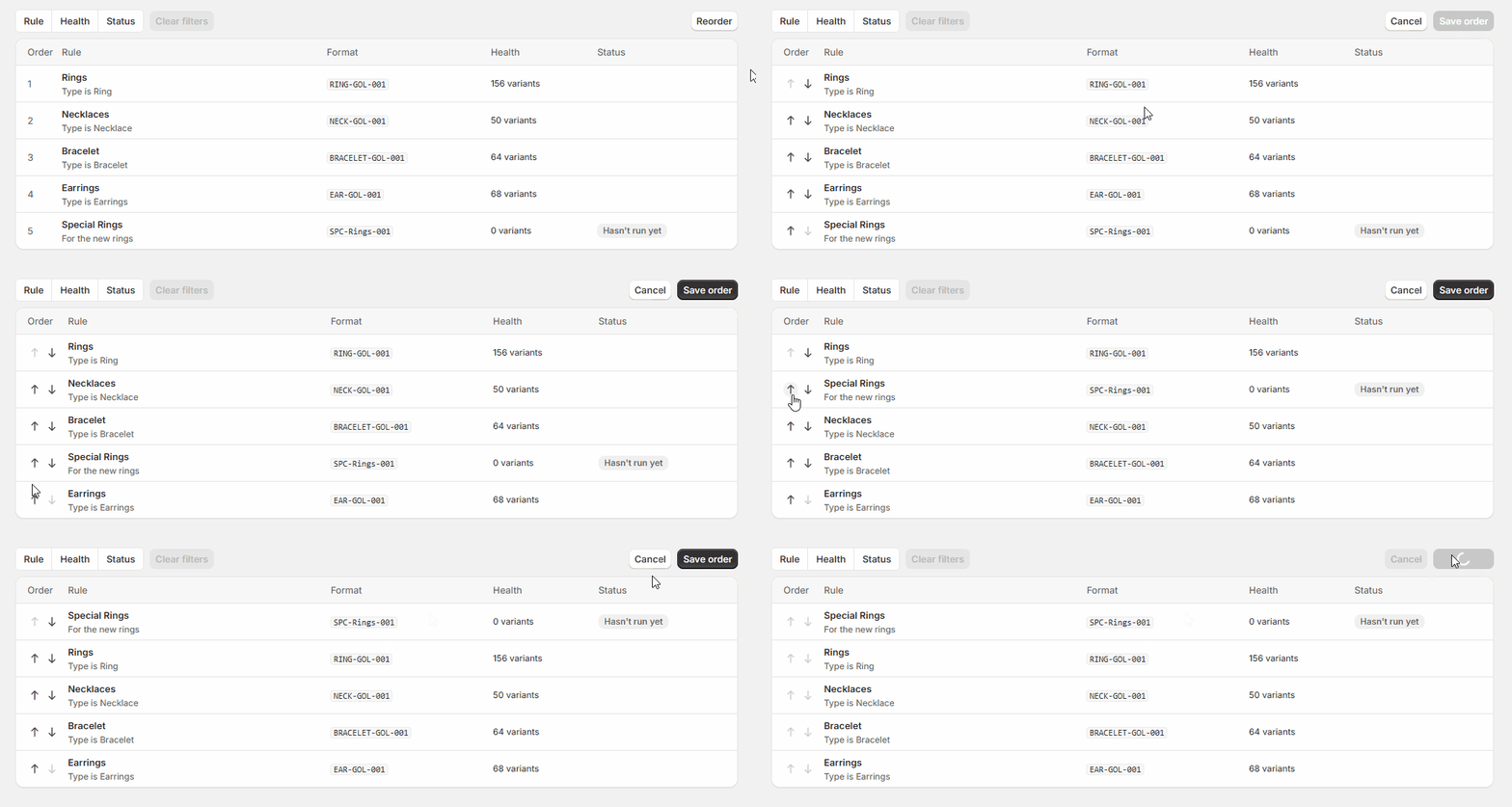
- Select Reorder at the top of the list, move rules with the arrows, and select Save order. Clear any filters first, since the arrows move a rule past ones a filtered list would hide.
- Or open a rule's panel, select Move rule from its ⋯ menu, and enter the position you want.
Everything else can't be moved.
The rule panel
A rule's panel shows what it applies to, its format, whether Automatic is on, its health with a fix beside each problem, and its last run. A rule that writes each SKU to the barcode too also has a Barcode row, reading Same as SKU.
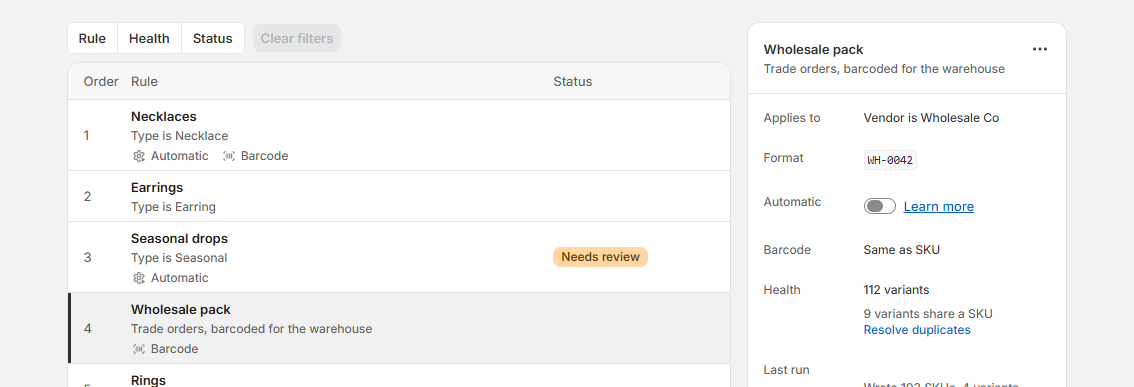
The ⋯ menu at the top of the panel has:
- Edit rule, which opens the rule's page.
- Run rule, which opens the rule's page at its Confirm section, ready to run. See Run a rule from its panel.
- Move rule, to type a new position.
- Delete rule.
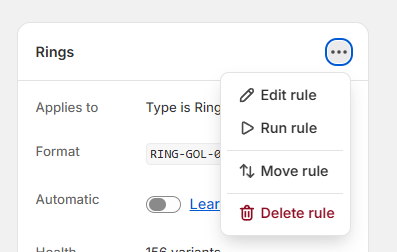
When something needs your attention, like a run that didn't finish or a format that changed, a notice at the top of the panel says what happened and what to do. See Rule and run states.
Delete a rule
Select Delete rule in the rule's ⋯ menu. The SKUs it has written stay on your products. The rule stops writing new products, and its runs stay on the Activity page.
Recommendations
- Put specific rules above general ones, and check the count under a new rule's conditions. If rules above it take most of its variants, it's probably in the wrong place.
- Build conditions on fields that rarely change, like Type, Vendor or Collection. If a product changes so it matches a different rule, its SKU stays as it was, and SKU health can then count it as out of format.
- Name rules for the products they cover, like "Gold necklaces", and use the description for why the rule exists.
- Check SKU health for variants that aren't in a rule. Those have nothing keeping their SKUs consistent, and Create rule beside them starts a rule for them.
- Start with one rule that applies to Everything else. It covers your whole store with one format. Add more specific rules above it only for products that need a different format.
Limits
- Up to 100 rules in a store. At the limit, you can still run a new rule once without keeping it.
- Up to 10 conditions in a rule.