
Combo modes
Combo modes control how each part of a SKU is generated. You apply a mode to each combo box to decide whether that box stays fixed, counts upward, or changes based on rules.
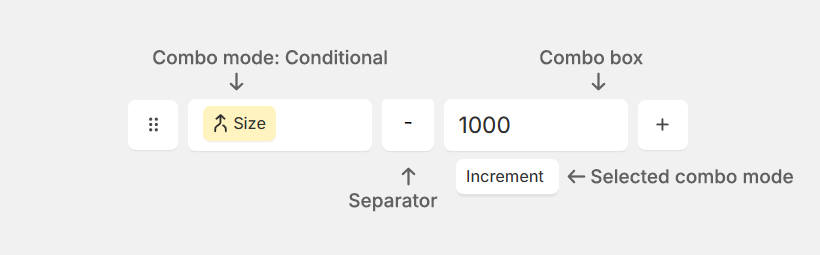
Separators are not combo boxes. They behave like fixed text placed between combo boxes, such as a dash. You cannot assign a combo mode to a separator.
Assign or change a combo mode
To set or change the mode for a combo box:
Click the combo box you want to edit in your SKU pattern.
The available mode options appear above the combo box. Select the mode you want to use for that box.
Enter a value in the selected combo box.
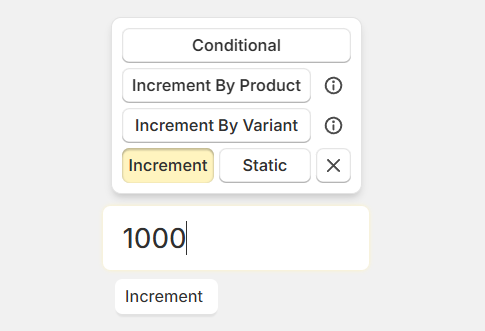
Clicking the X button removes the combo box. This can't be undone.
Available combo modes
Increment
Increment increases the number in that combo box by 1 for every SKU generated.
Use this when you want one continuous number sequence across all generated SKUs.
This is a good choice when you want every SKU to have a unique running number, regardless of product or variant.
Static
Static keeps the same text or number in that combo box for every SKU.
Use this for values that should never change, such as a brand code, product line code, or fixed separator-like text inside a box.
Increment by product
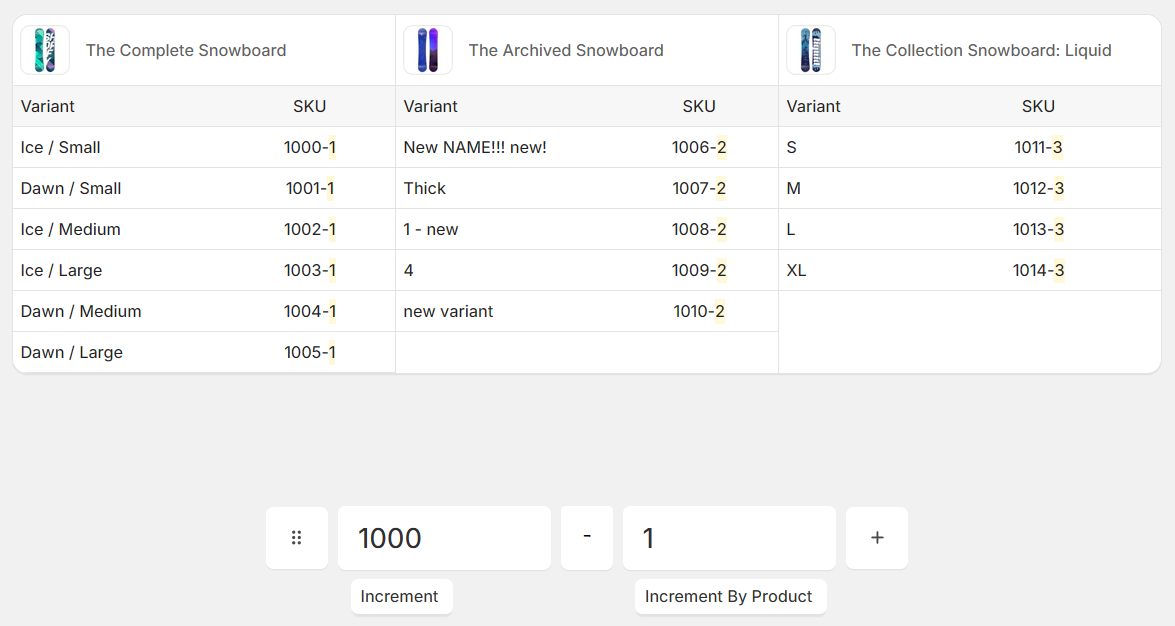
Increment by product increases the number once per product, not once per variant.
That means all variants of the same product share the same value in that combo box, and the number changes only when SKU Manager moves to the next product.
For example, if one product has six variants, all six variants can use the same product-level number. The next product then gets the next number in the sequence.
Increment by variant
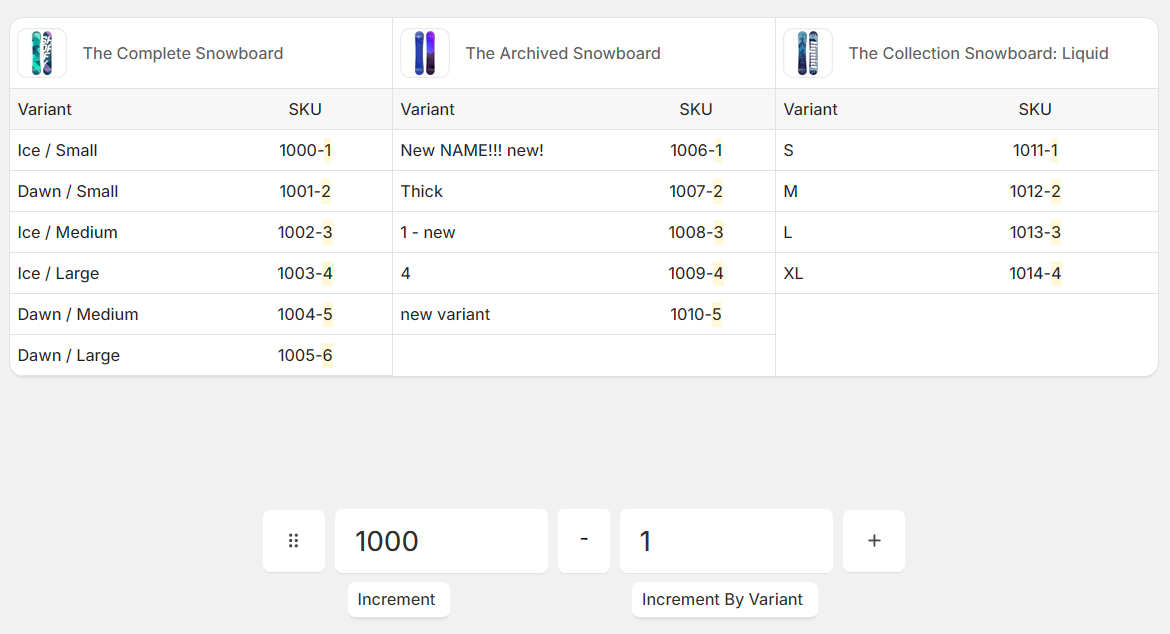
Increment by variant increases the number for each variant within a product, then starts over for the next product.
That means variants under the same product get their own sequence, such as 1, 2, 3, 4. When SKU Manager moves to a new product, the sequence resets and begins again.
This is useful when you want each product to have its own internal variant numbering instead of one product-level number.
Increment by product vs. increment by variant
Increment by product: one number per product; all of that product's variants share it.
Increment by variant: one number per variant; the sequence restarts for each product.
Choose Increment by product when the number should identify the product as a whole. Choose Increment by variant when the number should distinguish variants within each product.
Conditional
Conditional lets you output different values based on rules you define.
Use it when a combo box should change depending on product data, such as variant title, product type, option value, vendor, or another condition in your setup.
For a full walkthrough, see /conditional-mode.