 SKU Manager Docs
A SKU didn't change
Find out why a variant's SKU wasn't written, and what to do about it.
If a variant's SKU isn't what you expected after a run, start with the run itself. Open the Activity page and open the run. What changed lists every product the run wrote to, so search for the product and open it to see its variants' SKUs before and after.
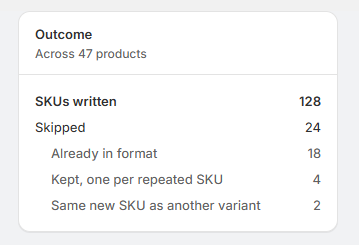
If the variant isn't there, the run didn't write to it. The run's Outcome counts the variants it skipped, by reason.
The run skipped it
Each reason under Skipped means:
- Already has a SKU: the run was set to Only variants without a SKU. To replace existing SKUs, run the rule with Every variant this rule owns in the Confirm section.
- Already in format: its SKU already matched the format. To rewrite it anyway, use Every variant, rewritten from scratch.
- Kept, one per repeated SKU: it shares a SKU with other variants, and it's the one that keeps it.
- Would come out blank: the format writes nothing for it, like a conditional with nothing to write and nothing in its anything else row.
- Same new SKU as another variant: it would have got the same SKU as another variant in the run. Check the format can tell these variants apart, like with a counter that counts Across everything.
See Rule and run states.
The rule doesn't cover it
If none of those fit, the rule may not cover the variant at all:
- Another rule takes it. Each variant belongs to the first rule in your list that matches it. Open the rule you expected and check the count under its conditions, which says when a rule above it takes its variants. See How order decides.
- Its product is archived. Rules don't cover archived products.
- It doesn't match the conditions. Check the rule's conditions against the product. For conditions on collections, select Resync products first, since collection changes aren't sent as they happen.
Shopify didn't accept it
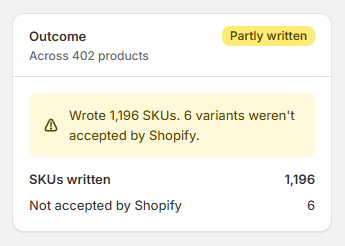
A run marked Partly written had some SKUs refused by Shopify. They're listed as Not accepted by Shopify. Run the rule again to retry them, and if Shopify keeps refusing one, let me know.
The run didn't finish, or didn't start
- Still running: a large run is written by Shopify and can take a few minutes. Its page says "Writing SKUs" until it's done.
- Didn't finish: the run stopped before the end. Run the rule again.
- Refused: a run doesn't start while another run is still writing, while your store is past its plan's size, or while SKU Manager is still reading your products. The message says which. See When a run can't start.
Automatic didn't write it
- The variant already had a SKU. Automatic only fills in missing SKUs.
- Its rule isn't set to Automatic, or it isn't in a rule. The Waiting tab on the Activity page says which rule will write each product, or why none will.
- It hasn't been long enough. New products get SKUs within your plan's interval, from 5 to 20 minutes. To write them now, select them on the Waiting tab and select Write SKUs now.
- The rule isn't writing new products, because it's paused or your store has outgrown its plan. The rule's panel says which. See Automatic.
- It was in the store before Automatic was on. Automatic covers products added or changed from then on. Run the rule to fill in the rest.
The SKU isn't in a variant's barcodes
A run writes to the barcode only when its rule has Write each SKU to the barcode too checked, and then only on the variants it writes a SKU to.
- The variant already had 20 barcodes, the most Shopify allows, so the run wrote its SKU and added nothing. The run's Outcome counts these as "Barcodes left alone, already holding 20".
- The SKU was already there. If one of the variant's barcodes already held it, even typed as a UPC or in different capitals, nothing is added.
- The run didn't write the variant's SKU. A variant the run skipped, or one whose SKU already matched, keeps the barcodes it has. If you need barcodes filled in on variants whose SKUs already match, message me through Report an issue under Resources.
- The rule didn't have it checked when it ran. On the run's page, a rule whose SKUs went to the barcode too is marked Barcode. Check Write each SKU to the barcode too in the Confirm section of the rule's page, then run the rule.
See Write each SKU to the barcode too.
It changed, then changed back
- The run was undone. The run's page says when, and links to the undo.
- Something else changed it. SKU Manager never changes a SKU back by itself, but you, a staff member, an import or another app can.
If none of these explain it, message me through Report an issue under Resources, with the product and the run, and I'll look into it.