 SKU Manager Docs
Running a rule
Preview the SKUs a rule would write, choose what to write, and run it.
A run is one time SKU Manager writes SKUs to your store. Nothing is written until you run a rule, and every run is listed on the Activity page, where you can undo it.
Runs start from:
- the Confirm section of a rule's page, when you create or edit a rule
- Run rule in a rule's panel on the Rules page, which opens the rule at its Confirm section
- a fix in SKU health, like Add SKUs or Bring into format, which opens the rule ready to run
- Resolve duplicates on the Duplicates page
- Automatic, for new products. See Automatic.
Preview
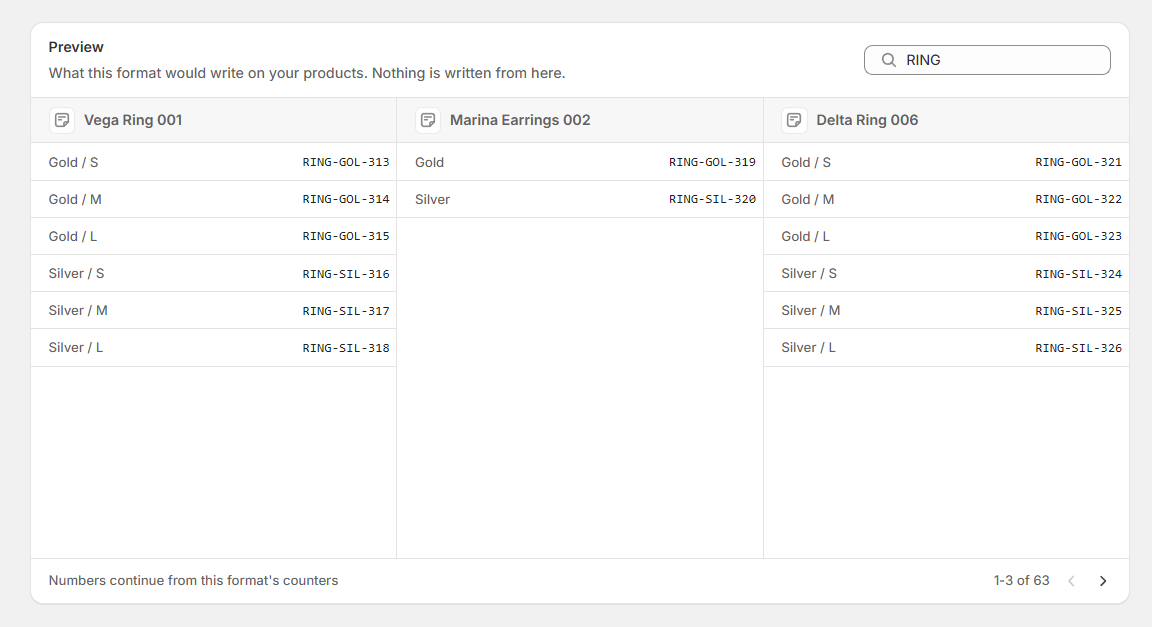
The Preview section shows the SKUs the rule would write on its own products, three products at a time. It follows the option chosen in the Confirm section below it, so changing that option changes the preview. If nothing would be written, it says why, like "Everything here is already in format".
The numbers in the preview are the ones a run would write now. A preview never uses up numbers, and if another run takes them first, your run writes the next ones.
Confirm
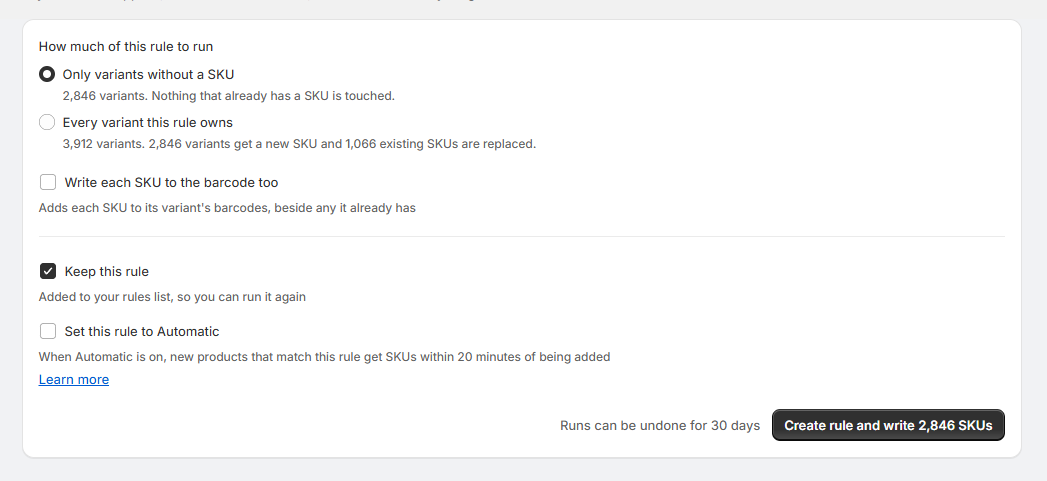
The Confirm section is where you choose what to write. Nothing is written to Shopify until you select the button at the bottom.
Choose how much to run
- Only variants without a SKU. Nothing that already has a SKU is touched. This is selected when you start.
- Every variant this rule owns. Fills in missing SKUs and fixes ones that don't match. SKUs that already match are left alone.
- Every variant, rewritten from scratch. Also rewrites the SKUs that already match, and they're given new numbers rather than the ones they have. Only offered when some of the rule's SKUs already match.
Once the preview has counted, each option says how many variants it covers and what happens to them, like "120 variants. 80 variants get a new SKU, 30 already match, and 10 existing SKUs are replaced." An option with nothing to write can't be selected.
Confirm SKUs being replaced
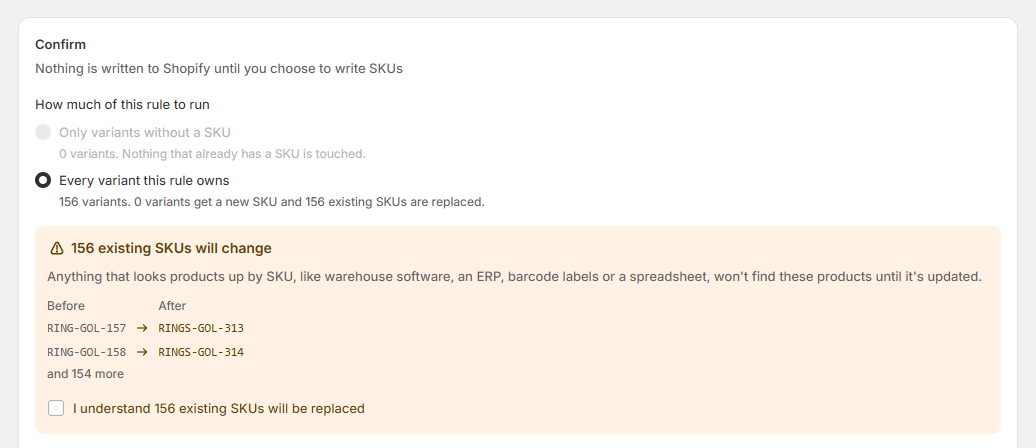
If the run would replace SKUs your variants already have, the Confirm section lists them, like "10 existing SKUs will change", with each one's current and new SKU. Anything that looks products up by SKU, like warehouse software, an ERP, barcode labels or a spreadsheet, won't find those products until it's updated. Check "I understand 10 existing SKUs will be replaced" to go ahead.
Variants a run will skip
The Confirm section also says when some variants will be skipped, and why:
- The format would come out blank for them, so there's nothing to write.
- They'd get the same new SKU as another variant in the run, so the later one is skipped. A run never writes the same SKU twice.
- They share a SKU, and one keeps it. When a run rewrites variants that share a SKU, one of them keeps the SKU it has and the others are rewritten.
Write each SKU to the barcode too
Check Write each SKU to the barcode too to have the run add each SKU to its variant's barcodes, as well as writing the SKU. Shopify POS finds a scanned product by any of its barcodes, so a label printed from the SKU scans once the SKU is among them.

- The barcodes a variant already has stay. A variant can hold up to 20 barcodes, and the SKU goes in beside them, so a UPC or an EAN you or a supplier entered is never replaced. Nothing is added where the SKU is already one of them.
- The SKU it added follows the SKU. When a later run changes the variant's SKU, the barcode SKU Manager added changes with it, rather than a second one being added. If you've edited that barcode yourself, it's yours, and the new SKU goes in beside it.
- A variant already holding 20 barcodes is left as it is. Its SKU is still written, and the run's Outcome counts it as "Barcodes left alone, already holding 20".
- Only variants the run writes a SKU to are covered. A variant the run skips, or one whose SKU is left alone because it already matches, keeps the barcode it has.
- The rule keeps the setting. Every later run of the rule writes to the barcode too, including automatic runs, until you uncheck it. To change it without running the rule, check or uncheck it and select Save.
The counts in the Confirm section and on the button are still SKUs, since the barcode takes the same SKUs the run writes. SKU Manager doesn't create barcodes like UPCs or EANs.
Keep the rule, and Automatic
- Keep this rule adds a new rule to your rules list so you can run it again. Uncheck it to write SKUs once without keeping the rule. You can still keep it from the run's page afterwards.
- Set this rule to Automatic also turns on Automatic for the rule, so new products that match it get SKUs.
Beside the button is how long you'll have to undo the run, like "Runs can be undone for 10 days".
Write
The button names what it does, like "Write 120 SKUs", or "Create rule and write 120 SKUs" for a new rule, or "Save rule and write 120 SKUs" for a rule you've changed.
After you write
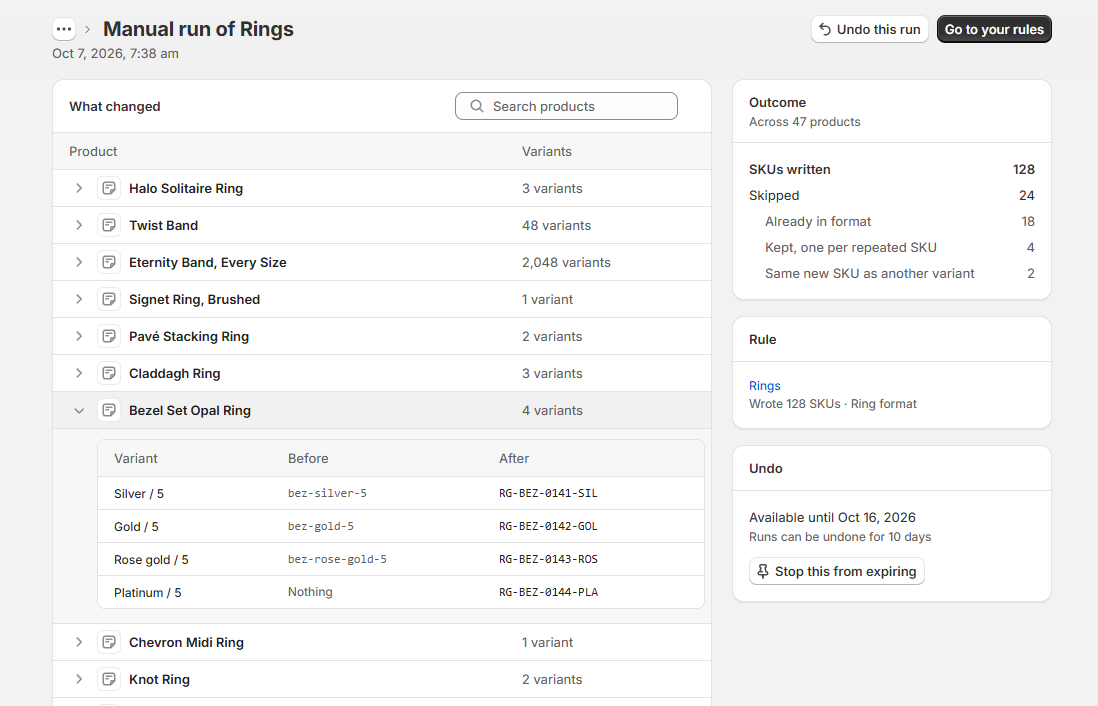
You're taken to the run's page on the Activity page. It shows "Writing SKUs" while the run is going, then what it wrote. A large run is handed to Shopify to write, which can take a few minutes, and it keeps going whether or not the app is open.
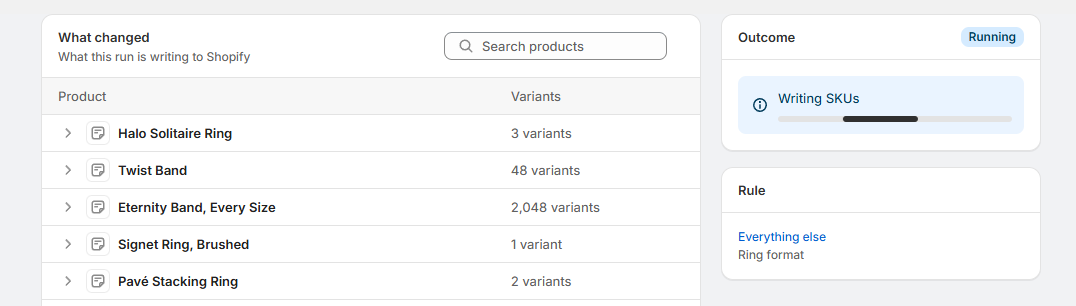
Once it's done, the run's page shows:
- Outcome: how many SKUs were written and how many variants were skipped, with why. A run that wrote its SKUs to the barcode too also counts "Barcodes left alone, already holding 20", when there were any.
- Rule: the rule or rules the run wrote through and what each wrote, marked Barcode when its SKUs went to the barcode too.
- What changed: every variant's SKU before and after, which you can search by product.
- Undo: until when the run can be undone, with Undo this run. See Activity, undo and redo.
After a run of a rule you kept, Go to your rules takes you back to the Rules page. After a run you didn't keep, the page asks "Keep this rule for next time?", where you can name it, set it to Automatic, and select Keep rule, or select Not this time.
Run a rule from its panel
Run rule in a rule's ⋯ menu on the Rules page opens the rule's page at its Confirm section, with Only variants without a SKU selected. Nothing is written until you select the button there, so you see what the run would write, and any SKUs it would replace, before it does.
Run rule can't be selected while that rule's run is still writing. When a rule's last run didn't finish, the notice at the top of its panel has Run rule too, and it opens the same place.
When a run can't start
- Another run is still writing. Only one run writes to a store at a time, including undos, redos and automatic runs. The message says which one and since when, like "An automatic run started 3 minutes ago and is still writing SKUs. Try again once it finishes."
- Your store has outgrown its plan. The message names the plan that fits, like "Your store holds 6,200 managed variants and Growing fits stores up to 5,000. Upgrade to Established to write SKUs." On Free, a store over 500 managed variants can write its first 500 SKUs free. See Plans and pricing.
- SKU Manager is still reading your products. A rule with conditions on collections or options, or a format with a Per variant counter, needs every product read first. Try again in a few minutes.
Recommendations
- Start with "Only variants without a SKU". It only adds SKUs, so nothing that already relies on your existing ones is affected.
- Before replacing existing SKUs, list what reads them, like warehouse software, an ERP, barcode labels, marketplaces or spreadsheets, and plan to update them after the run.
- Try a narrow rule first. A rule for one product type or one tag shows you the result on a few products before you run one across your store.
- Look at What changed after a big run, while it can still be undone.
Duplicates and the rest of your store
A run never writes the same SKU to two variants in that run, and rules that share a format never hand out the same number. A run doesn't check the rest of your store for a SKU already in use, though. A SKU typed in by hand, a counter set back, or two formats that write the same pattern can still produce a duplicate, and SKU health counts it when it does. See SKU health.