 SKU Manager Docs
Conditional parts
Write different text in a SKU depending on the product, like a code for each color or size.
A Conditional part writes different text depending on the product. It's how a format writes RED into one variant's SKU and BLU into another's, or a short code for each vendor.
To open a Conditional part, select the cog icon on it in the format editor. Its conditions open below the format, and read as a sentence: "Where Option named Color, is Red, write RED".
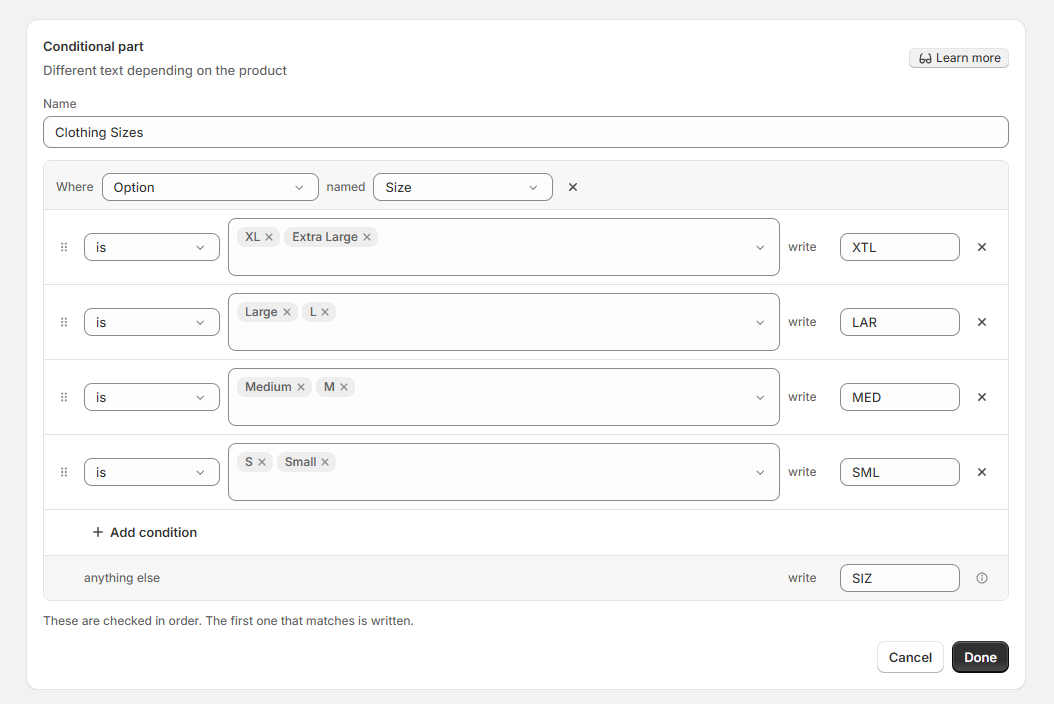
Choose what it looks at
In Where, choose the one field the part checks:
| Field | What's checked |
|---|---|
| Option | The variant's option values, like Red or Small |
| Title | The product's title |
| Product type | The product's type |
| Vendor | The product's vendor |
| Tags | The product's tags |
| Collection | The collections the product is in |
Option checks every option a variant has, so Red matches a variant whose options are Red and Small. To check one option only, select Limit to one option and choose the option's name, like Color. Select the × beside the name to check every option again.
A conditional carried over from before 3.0 can also check Variant title, the variant's full title like "Red / Small".
Collection uses the collections SKU Manager last read. Shopify doesn't send collection changes as they happen, so after moving products between collections, select Resync products at the top of the Rules page.
Add conditions
Select Add condition. Each condition carries on the sentence: how to compare, the values to look for, and what to write when it matches.
How a condition can compare depends on the field:
| Field | Ways to compare |
|---|---|
| Option, limited to one option | is, is not, contains, starts with |
| Option, checking every option | is, is not, contains, starts with, all of |
| Title, Product type, Vendor | is, is not, contains, starts with |
| Tags, Collection | any of, all of, none of, contains, starts with |
- Choose values from the ones your products already hold, which shows how many variants hold each, or type one that isn't on the list yet and press Enter.
- A condition can hold several values, like "is S, Small", and matches if any of them does. With all of, it matches only when every value does, which is how a condition picks out a combination like Red and Large.
- Matching ignores upper and lower case, so
redmatches Red. - The box for what to write suggests a code from the first value, like
REDfor Red. Only what you type is written.
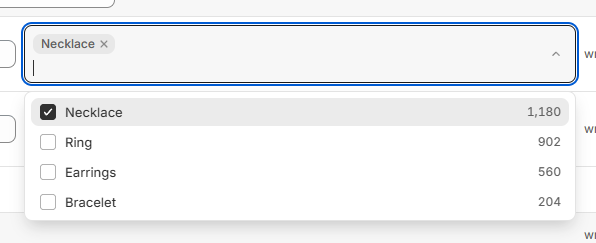
A conditional can hold up to 125 conditions.
Order matters
Conditions are checked from the top, and the first one that matches is written. Drag a condition by the handle at its start to move it.
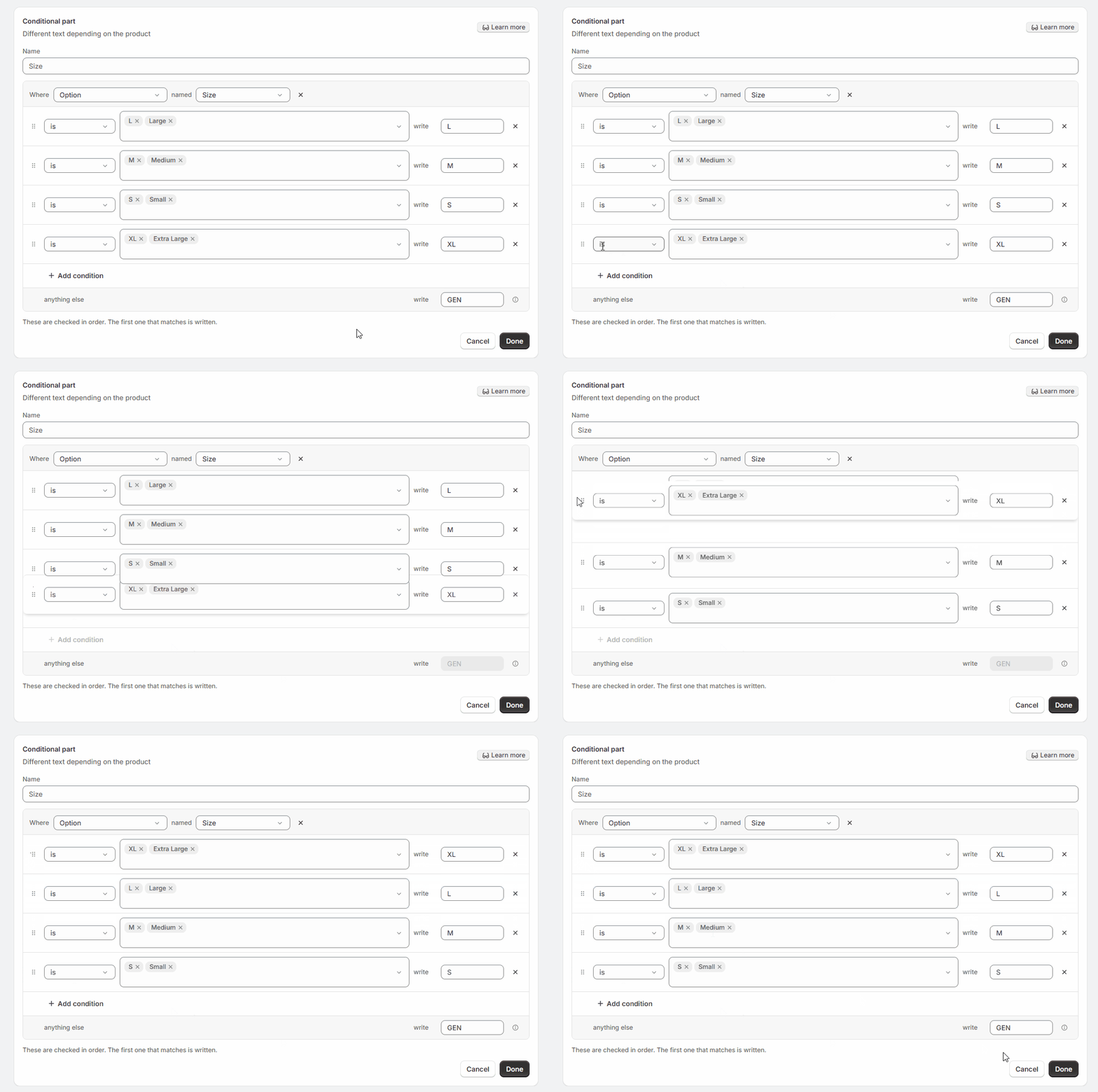
Put the more specific conditions first. With these two in this order, a variant named Dark Blue matches the first and gets BLU, and never reaches the second:
| Order | Condition |
|---|---|
| 1 | contains Blue, write BLU |
| 2 | contains Dark Blue, write DBL |
Swap them, and Dark Blue gets DBL while Blue still gets BLU.
When nothing matches
The anything else row, at the bottom of the conditions, is what the part writes when no condition matches.
Leave it blank to write nothing. The part and its separator are then left out of that variant's SKU, so a format of TEE, a conditional and a counter writes TEE-RED-0042 for a red variant and TEE-0043 for a variant with no color.
Name it
Name is optional, up to 40 characters, and shows on the part in the format editor, so two conditionals in one format are easy to tell apart.
Finish
Select Done to close the conditional and keep your changes, or Cancel to put it back as it was. Then save the format.
Recommendations
- Limit Option to the option you mean. Checking every option, a condition like "is Black" matches a black strap as well as a black case. Limited to one option, it only looks at that one.
- Use
israther thancontainsfor short values. "contains S" also matches Small, Silver and Sand. - Put spellings of one thing in one condition, like "is Grey, Gray", so they all write the same code.
- Keep codes the same length, like
RED,BLUandGRN, so SKUs line up. - Decide what happens when nothing matches. A code in the anything else row, like
XX, keeps every SKU the same shape. A blank leaves the part out, which suits a part only some products need.