 SKU Manager Docs
Counters
Number your SKUs across everything, per product or per variant, and control where the numbers start.
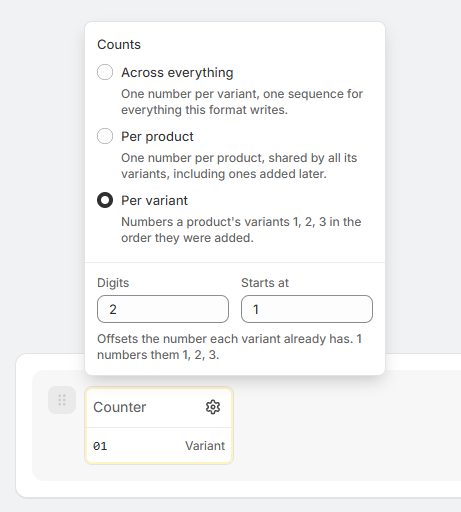
A Counter part writes a number that goes up, which is what gives each variant a SKU of its own. In the format editor, the part shows the next number it writes and how it counts, shortened to All, Product or Variant.
Select the cog icon on the part to open its settings:
- Counts: what the counter numbers. See How a counter counts.
- Starts at: the first number it writes.
- Digits: the least number of digits it writes, padded with zeros. With 4 digits, 42 is written
0042. A number with more digits than this is written in full, so10000comes after9999. Set it to 0 for no padding. - Next number: the number it writes next, with Reset counter to change it.
How a counter counts
There are three ways, chosen in the counter's settings. Here's how each one numbers the same five variants:
| Product | Variant | Across everything | Per product | Per variant |
|---|---|---|---|---|
| Classic tee | Red / S | 1 | 1 | 1 |
| Classic tee | Red / M | 2 | 1 | 2 |
| Classic tee | Blue / S | 3 | 1 | 3 |
| Hoodie | Black / M | 4 | 2 | 1 |
| Hoodie | Black / L | 5 | 2 | 2 |
One number per variant, in one sequence for everything this format writes. Every variant gets a number of its own, across every product and every rule that uses the format.
This is the simplest way to make every SKU different, and it's how a new Counter part starts.
One number per product, shared by all its variants, including ones added later. A variant added to a product months from now gets the same number as the rest of its product, as long as another of its variants still has a SKU in this format.
Since every variant of a product shares the number, a product with more than one variant needs something else in the format to tell its variants apart, like a Conditional part on an option, or a second counter that counts Per variant.
Numbers a product's variants 1, 2, 3 in the order they were added. The numbers start again in each product. Reordering variants in Shopify doesn't change them, and a variant added later gets the next number in its product rather than one a sibling already has.
Since the numbers start again in each product, the format needs something else to tell products apart, like a counter that counts Per product.
For a Per variant counter, Starts at offsets every number: 1 numbers variants 1, 2, 3, and 101 numbers them 101, 102, 103. It has no Next number, since each variant keeps its own.
Combine two counters
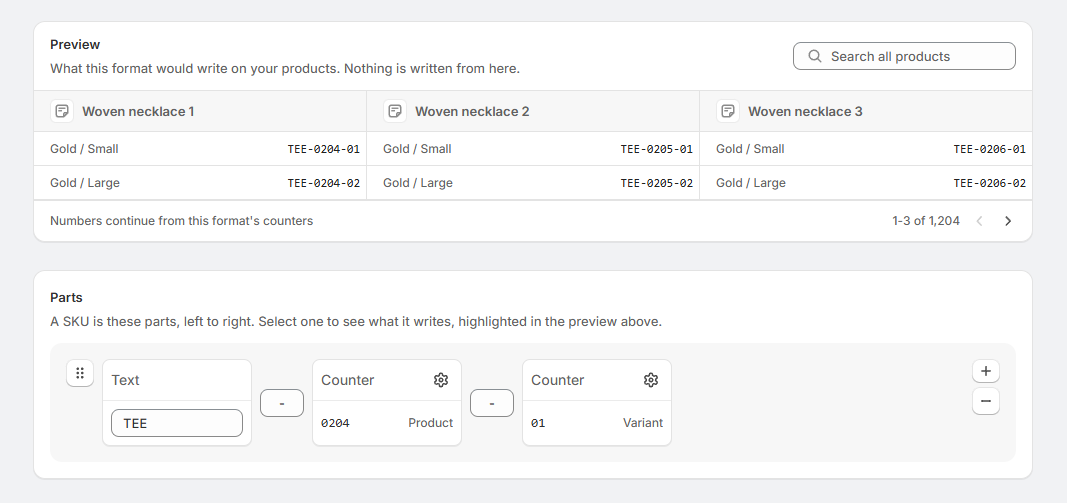
A Per product counter and a Per variant counter together give every variant its own SKU, grouped by product:
| Product | Variant | SKU |
|---|---|---|
| Classic tee | Red / S | TEE-0001-1 |
| Classic tee | Red / M | TEE-0001-2 |
| Hoodie | Black / M | TEE-0002-1 |
Keep a separator or some text with a letter or symbol between two counters. Without one, 11 then 1 reads the same as 1 then 11, and the format editor warns about it.
A separate sequence for each product type
To number each product type from 1, make a rule for each type, like "Type is T-shirt" and "Type is Hoodie", and give each rule its own format. Make the first format, then select Duplicate in its menu on the Formats page for each of the others, so each has its own numbering.
How numbers are given out
- The preview doesn't use numbers. It shows the numbers a run would write now, and the run takes them when you write.
- Within a run, products are numbered oldest first.
- Numbers only go up on their own. A number a run doesn't end up writing, like one for a variant it skipped, isn't reused, so there can be gaps.
- Rules on the same format share its counters, so they never hand out the same number. To give a rule its own numbering, use a copy of the format. See Share a format, or copy it.
- Undoing a format's most recent run sets its counters back to where they were before that run, so those numbers are given out again. Undoing an older run leaves the counters where they are. Redoing the run moves them forward again.
Where a counter starts
A new counter starts at the number in Starts at. If your first format was filled in from your own SKUs, its counter starts past the highest number your SKUs already hold.
Starts at only applies until the counter has written its first number. After that, change where it goes next with Reset counter.
Reset a counter
In the counter's settings, select Reset counter under Next number, enter the next number, and select Set next number. Nothing changes until you save the format.
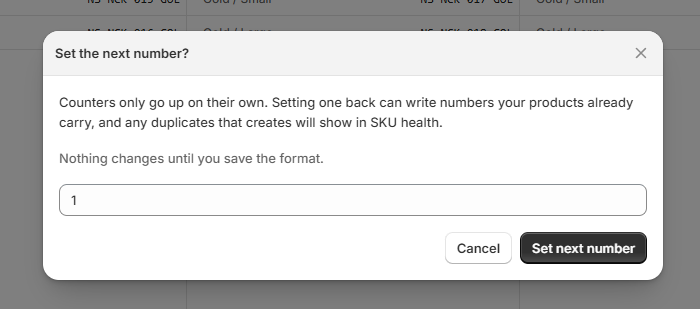
Resetting a counter doesn't change any SKUs already written. Only SKUs written from then on use the new numbers. To renumber the variants a rule has already written, run the rule again with Every variant, rewritten from scratch in the Confirm section, and do the same for every other rule that uses the format. See Running a rule.
Recommendations
- Leave room to grow in Digits. 4 digits covers 9,999 numbers. Past that, SKUs get a digit longer and stop lining up, so choose for the size your store could reach, not the size it is.
- Use
Across everythingunless you want SKUs grouped by product. It's the simplest way to give every variant its own number. - For SKUs grouped by product, combine
Per productandPer variant, likeTEE-0042-1,TEE-0042-2, with a separator between them. - Carrying on from SKUs you already have? On a new format, set Starts at above the highest number they hold, so new SKUs don't repeat old ones.
- Reset a counter only when you mean to renumber. Then rewrite the SKUs of every rule on the format straight away, so old and new numbers don't overlap.