 SKU Manager Docs
SKU changes not showing in Shopify
Troubleshoot SKU changes that did not appear by checking product sync status, duplicate-only updates, and deleted variants.
If a SKU change did not appear in Shopify, the cause usually falls into one of three cases: only some variants updated, only duplicate variants updated, or none of the variants updated. Use the sections below to identify what happened and fix it quickly.
Note
If you recently added products or deleted variants in Shopify, SKU Manager may need a fresh product sync before it can apply updates correctly.
Only some variants updated
If only some variants on a product were updated, the product was likely added to Shopify recently and SKU Manager does not yet have the latest product data.
When this happens, SKU Manager may update the variants it already knows about, but miss newer variants until you resync your products.
What to do
Resync your products
Run a product sync in SKU Manager so the app pulls the latest product and variant data from Shopify.
Run the SKU update again
After the sync finishes, repeat the SKU change for the affected product.
Confirm the result in Shopify
Check the product in Shopify to make sure all expected variants now show the new SKU values.
Tip
If the product was created or updated very recently, wait for the sync to finish completely before retrying the change.
Only duplicate variants updated
If this happened after running a duplicate check, the [Only update duplicates](/docs/managing-skus/duplicate-checking#updating-duplicate-values) option was likely enabled.
When that option is turned on, SKU Manager updates only the variants that currently have a conflicting or duplicate SKU. Variants without a duplicate are left unchanged.

What to do
Review how the update was started
If you launched the change from a duplicate check, confirm whether Only update duplicates was selected.
Run the update again without that option
If you want every matching variant to be updated, repeat the SKU update and leave Only update duplicates unchecked.
Verify all variants
After the update completes, review the product in Shopify and confirm that all intended variants were updated, not just the duplicates.
Warning
If you use Only update duplicates, SKU Manager will intentionally skip any variant that does not have a duplicate SKU conflict.
None of the variants updated
If none of the variants were updated, a recently deleted variant may have blocked the update.
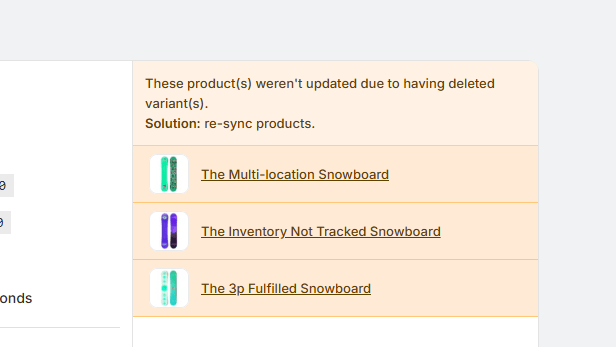
This usually happens when SKU Manager is working from older product data and one of the variants it expects to update no longer exists in Shopify. In this case, the app typically shows a warning after the update finishes telling you that some products could not be updated and need to be resynced.
What to do
Check for the warning message
Look for the warning shown after the update. It will usually list the products that were not updated because of deleted variants.
Resync your products
Run a product sync in SKU Manager to refresh the product and variant data from Shopify.
Retry the SKU change
After the sync is complete, run the SKU update again for the affected products.
Confirm the update in Shopify
Open the products in Shopify and verify that the SKU changes now appear.
If SKU Manager tells you to resync products, complete the resync before retrying the update. Retrying first usually leads to the same result.
Next steps
-
If only some variants updated, resync products and try again.
-
If only duplicates updated, rerun the update without Only update duplicates selected.
-
If none of the variants updated, look for the warning, resync products, and retry the update.
In most cases, a fresh product sync resolves the issue and allows the SKU change to apply normally.