
Format existing SKUs
Format SKUs in bulk
The formatting tool lets you update existing SKUs. You can convert SKUs to uppercase or lowercase, and you can also replace text within SKUs to standardize naming across your catalog.
You can combine one case option with multiple replace changes before applying the update.
Video Overview
What you can do
Convert to uppercase: change all letters to capital letters.
Convert to lowercase: change all letters to lowercase letters.
Replace text: swap one part for another, such as changing
ShirttoTee.
Text replacement is case-sensitive. For example, replacing shirt will not replace Shirt unless the capitalization matches exactly.
How to format existing SKUs
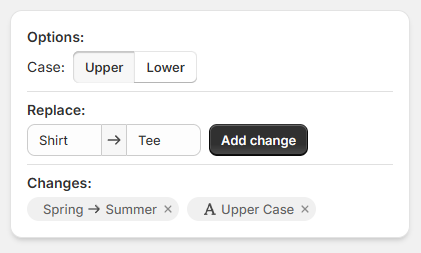
Under Case, select either Upper or Lower if you want to change the letter casing of your SKUs. You can leave this unset if you only want to replace text.
In the Replace section, enter the text you want to find and the text you want to use instead, then select Add change. Repeat this for each replacement you want to include.
Check the Changes area to confirm every update before applying it. This list shows your selected case option and each replace change that will be included in the bulk update.
Once the changes look correct, apply the update to save the new SKU formatting.
Review your change chips carefully before saving, especially when using multiple replacements together with a case change.
Undo a mistake
If you apply the wrong formatting, you can recover your previous SKUs from History by restoring a restore point.
See here for Undoing SKU changes.
If needed, use History to roll back the bulk update and return your SKUs to their earlier values.